


"Search Google or type a URL" is the hint text inside Chrome's search box. It means the box takes two kinds of input: type words (like cheap flights to lisbon) and Chrome searches Google for them, or type a web address (like youtube.com) and Chrome opens that site directly. Nothing is wrong with your browser, and you don't need to type that sentence anywhere. Click the box and type what you want.
If you want Google itself, its address is google.com. Below: what the other versions of the prompt mean ("Ask Google or type a URL", "Search or type URL"), how the browser decides between a search and a website, and how to fix the box when it misbehaves.
Key takeaways
- The phrase "Search Google or type a URL" is placeholder text. The same box accepts a search or a web address, and the browser works out which one you meant.
- Words go to your default search engine. Switch Chrome to Bing and the prompt becomes "Search Bing or type a URL".
- Newer Chrome builds show "Ask Google or type a URL" on the New Tab page, part of the AI Mode push. The box still works the same way.
- Single words like facebook are treated as searches. Add .com, add a trailing slash, or press Ctrl+Enter to open the site instead.
- The phrase is never a virus. A search engine you didn't pick, or settings that won't stay changed, is the real warning sign.
What Does "Search Google or Type a URL" Mean?
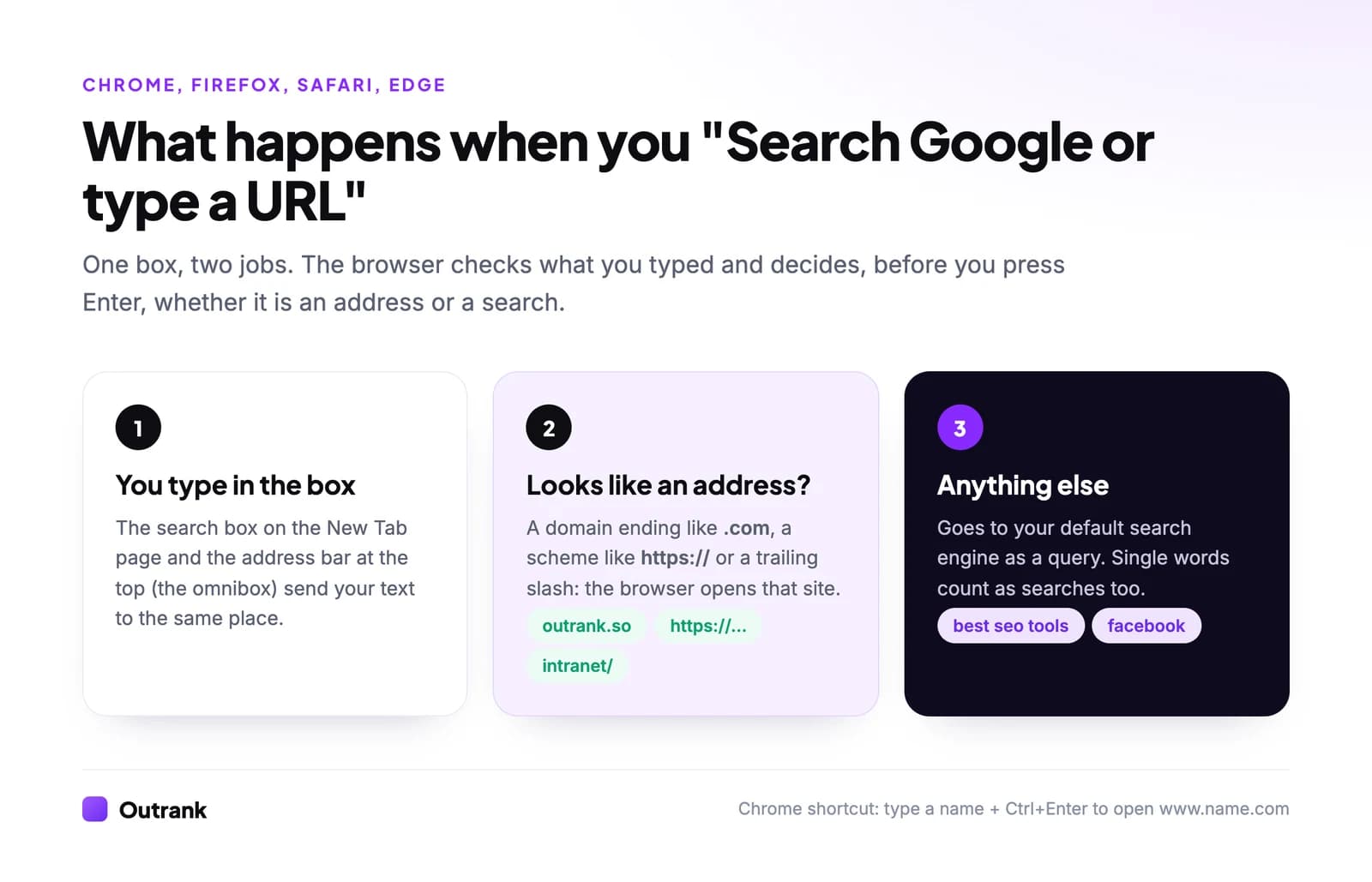
It is an instruction, not a question. The box at the top of your browser (and the one in the middle of Chrome's New Tab page) does two jobs at once:
- Know the website? Type its address, like
wikipedia.orgorgmail.com, and press Enter. You go straight there. - Don't know the website? Type words or a question, like
best email app for small business, and press Enter. You get a page of search results.
Chrome calls this combined box the omnibox. The word "Google" in the prompt is simply the name of your default search engine. In the address bar, Chrome builds the sentence from a template, Search $1 or type a URL, and drops in whichever engine you chose, so the text changes if you switch to Bing, DuckDuckGo or Ecosia.
Why Chrome Now Says "Ask Google or Type a URL"
Some people now see "Ask Google or type a URL" instead. Same box, new wording. Chromium's source code defines "Ask Google or type a URL" as the placeholder for the New Tab page search box, next to rotating prompts like "Make a plan", "Compare options" and "Research anything". On Android and iPhone the equivalent is "Ask Google or type URL".
The change follows Google's push to get people asking full questions instead of typing keywords. In September 2025 Google added AI Mode to Chrome's address bar in the US, and in early 2026 Chrome 145 on desktop expanded the AI Mode prompt box with a plus menu for attaching tabs, images and files.
What it means for you in practice:
- Type a question and press Enter: you still get a regular Google results page (which may include an AI Overview at the top).
- Click the AI Mode button in the box (where it's available): your question goes to Google's AI Mode chat instead.
- Type an address: you still go straight to the site.
If the AI Mode button bothers you, right-click the address bar and untick Always Show AI Mode Shortcuts, per 9to5Google's walkthrough.
What the Box Says in Other Browsers and Languages
Every modern browser uses the same two-in-one box. Only the wording changes. These strings come from the browsers' own source code where it is public (Chromium and Firefox):
| Where you see it | Exact prompt |
|---|---|
| Chrome New Tab page (desktop) | Search Google or type a URL |
| Chrome New Tab page, newer AI builds | Ask Google or type a URL |
| Chrome address bar (desktop) | Search Google or type a URL (the engine name changes with your default) |
| Chrome on Android and iPhone | Search or type URL, Search Google or type URL, or Ask Google or type URL |
| Firefox address bar | Search with Google or enter address (or "Search or enter address") |
| Safari on Mac and iPhone | Search or enter website name |
| Chrome in Portuguese | Pesquise no Google ou digite um URL |
| Chrome in Spanish | Buscar en Google o escribir una URL |
| Chrome in French | Rechercher sur Google ou saisir une URL |
| Chrome in Italian | Cerca con Google o digita un URL |
Older Android builds of Chrome said "Search or type web address", and you will also run into "search or enter URL" or "search or enter website" in other apps. Microsoft Edge uses the same combined box with Bing as its default engine. Different words, identical behavior: words search, addresses navigate.
What Is a URL?
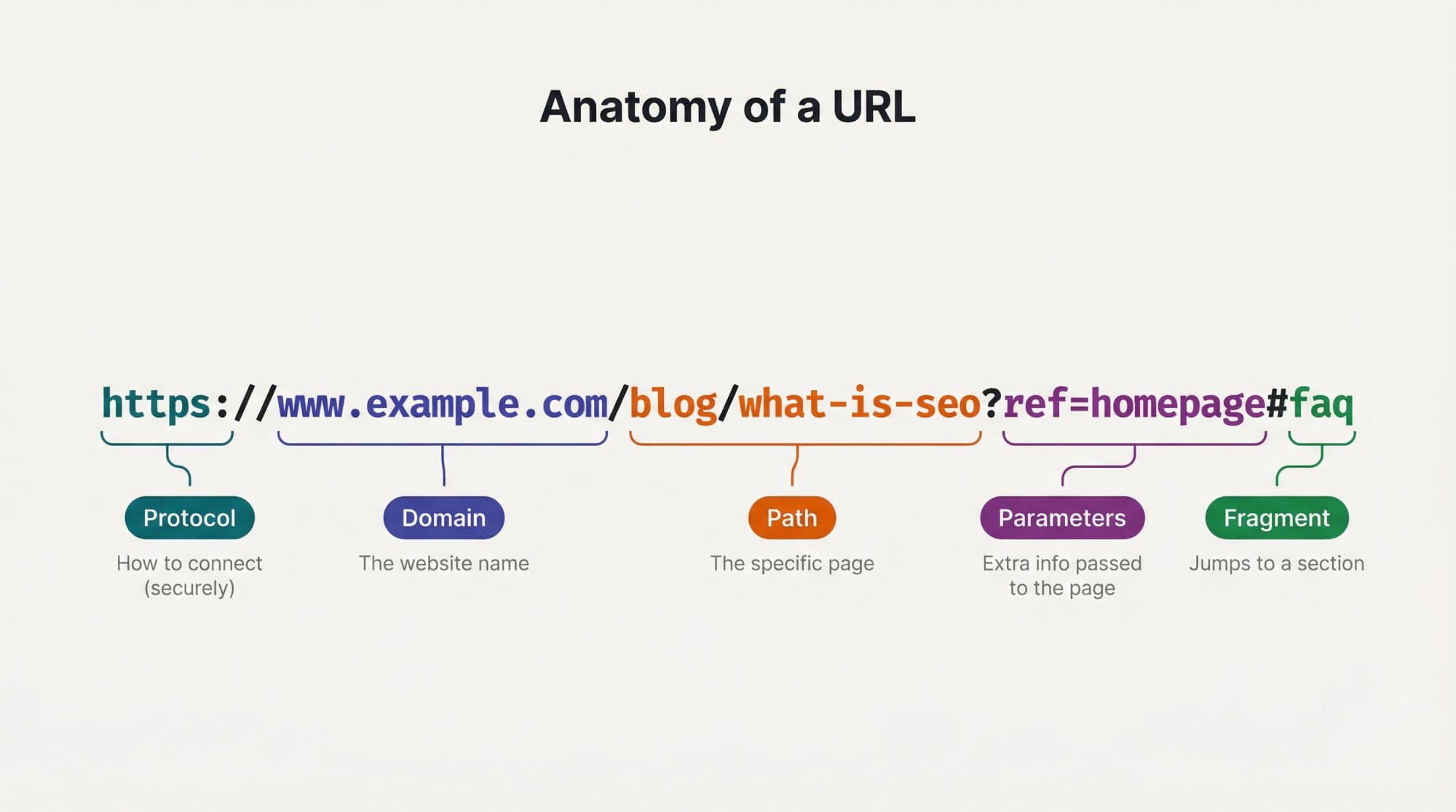
A URL (Uniform Resource Locator) is the address of one specific page or file on the web. MDN Web Docs defines it as the address of a unique resource on the internet. A full one looks like this:
https://www.example.com/blog/what-is-seo?ref=homepage#faq
| Part | Example | What it does |
|---|---|---|
| Protocol | https:// | How the browser connects (securely, here) |
| Domain | www.example.com | The website's name |
| Path | /blog/what-is-seo | The specific page on that site |
| Parameters | ?ref=homepage | Extra information passed to the page |
| Fragment | #faq | Jumps to a section of the page |
For everyday browsing you only need the domain. nytimes.com gets you to the homepage; the browser fills in the rest. If you build websites, clean and descriptive paths also help search engines understand your pages, which is one of the basics in our technical SEO best practices guide.
Why Your Browser Has One Box Instead of Two
Browsers used to have two fields: an address bar on the left and a small search box on the right. You had to decide which one to use before you typed a single letter. Chromium's design notes explain that even for people who understood the difference, making that choice was a small, mostly subconscious mental load. Merging the two removed it.
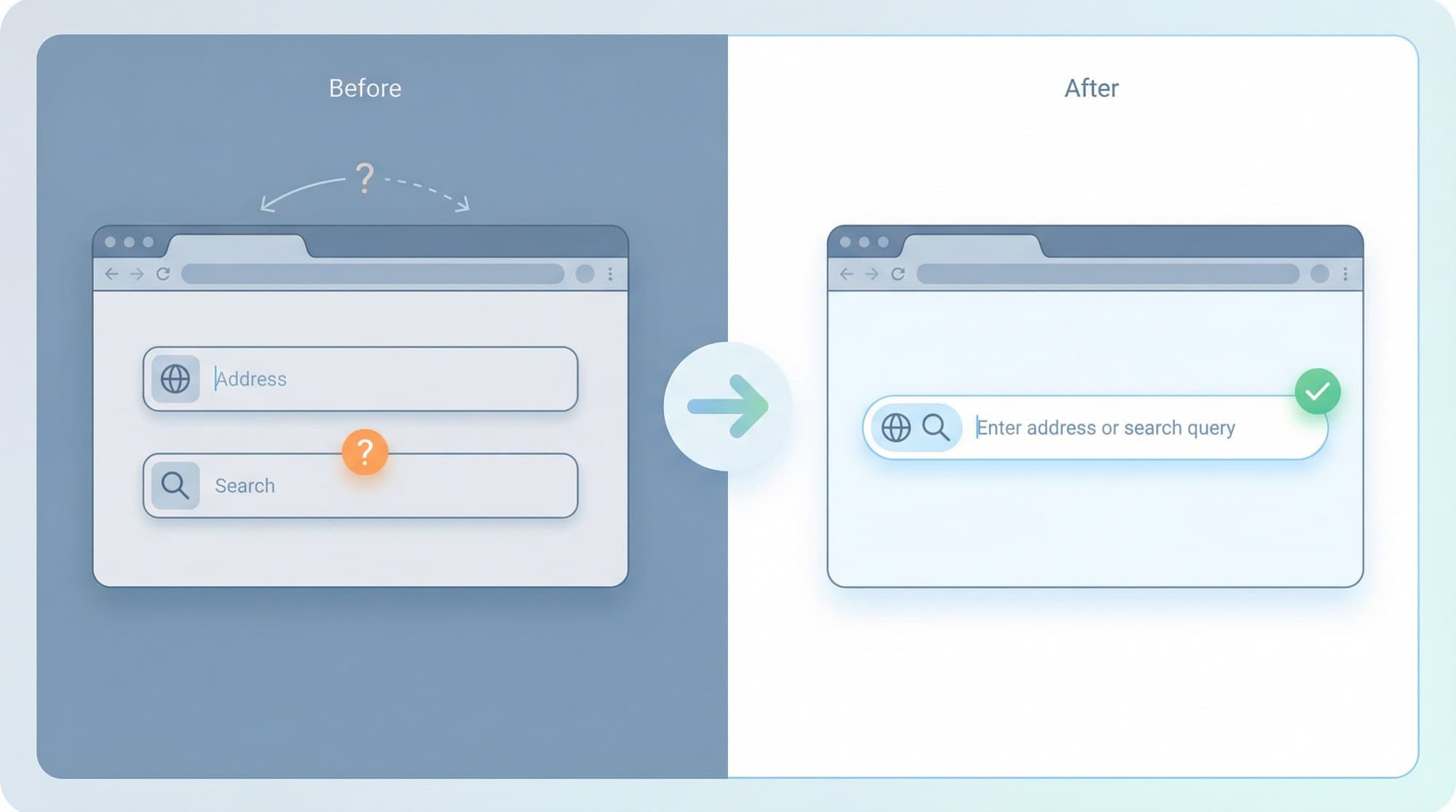
Every major browser copied the idea. Apple calls Safari's version the Smart Search field, Firefox simply calls it the address bar, and Chrome's team calls it the omnibox.
How Your Browser Decides: Search or Website?
Browsers don't read minds. They follow simple rules, documented in Chromium's omnibox design notes:
- Input that looks like a URL (a domain ending such as
.com, a scheme such ashttps://, or a trailing slash) opens that address. - Multiple words are treated as a search, unless the first word is one of your search shortcuts.
- A single word is ambiguous. Chrome defaults to a search, because far more single words are meant as searches than as addresses, then checks in the background whether a local site with that name exists. If one does, it shows a "Did you mean http://word/" prompt.
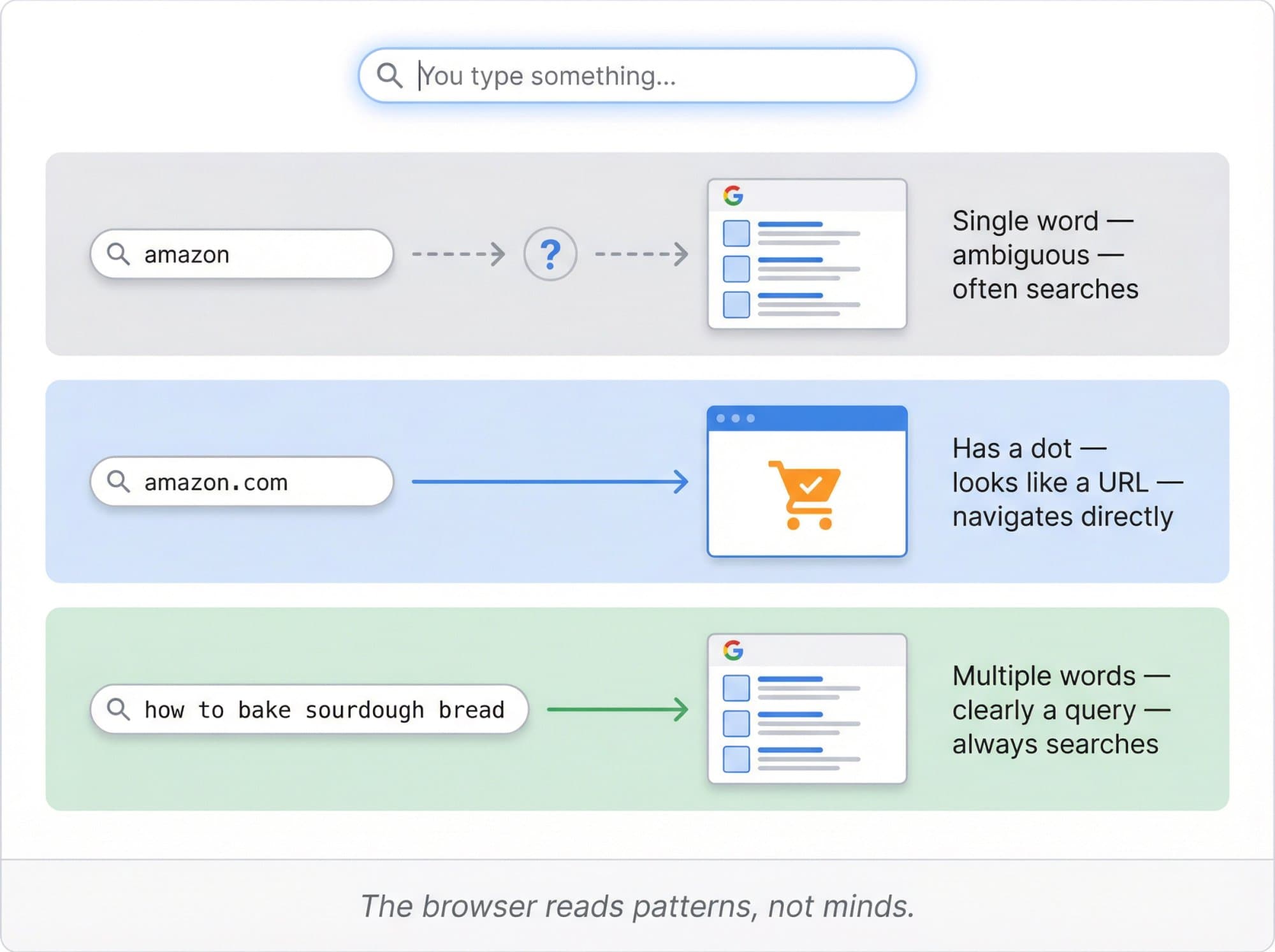
| What you type | What happens | Why |
|---|---|---|
amazon | Searches for "amazon" (or autocompletes to amazon.com if it's in your history) | Single word, ambiguous |
amazon.com | Opens Amazon | Has a domain ending |
how to bake sourdough | Searches | Several words |
intranet/ | Tries the address http://intranet/ | Trailing slash forces a URL |
support.mozilla.org | Opens Mozilla's support site | Looks like an address |
So when typing facebook gives you a results page instead of Facebook, the browser is doing what it was designed to do. Type facebook.com, or type facebook and press Ctrl + Enter (Ctrl + Return on Mac). Chrome's shortcut list says that adds www. and .com and opens the site.
Search engines play the same guessing game one step later: they try to work out what you meant rather than match words literally. That idea sits behind semantic SEO.
What Happens While You Type
The box starts working before you press Enter. Chrome's help page explains that suggestions come from your browsing history plus your default search engine, and that Chrome may preconnect to that search engine in the background so results load faster. When it's confident where you're going, it can even start loading the page early.
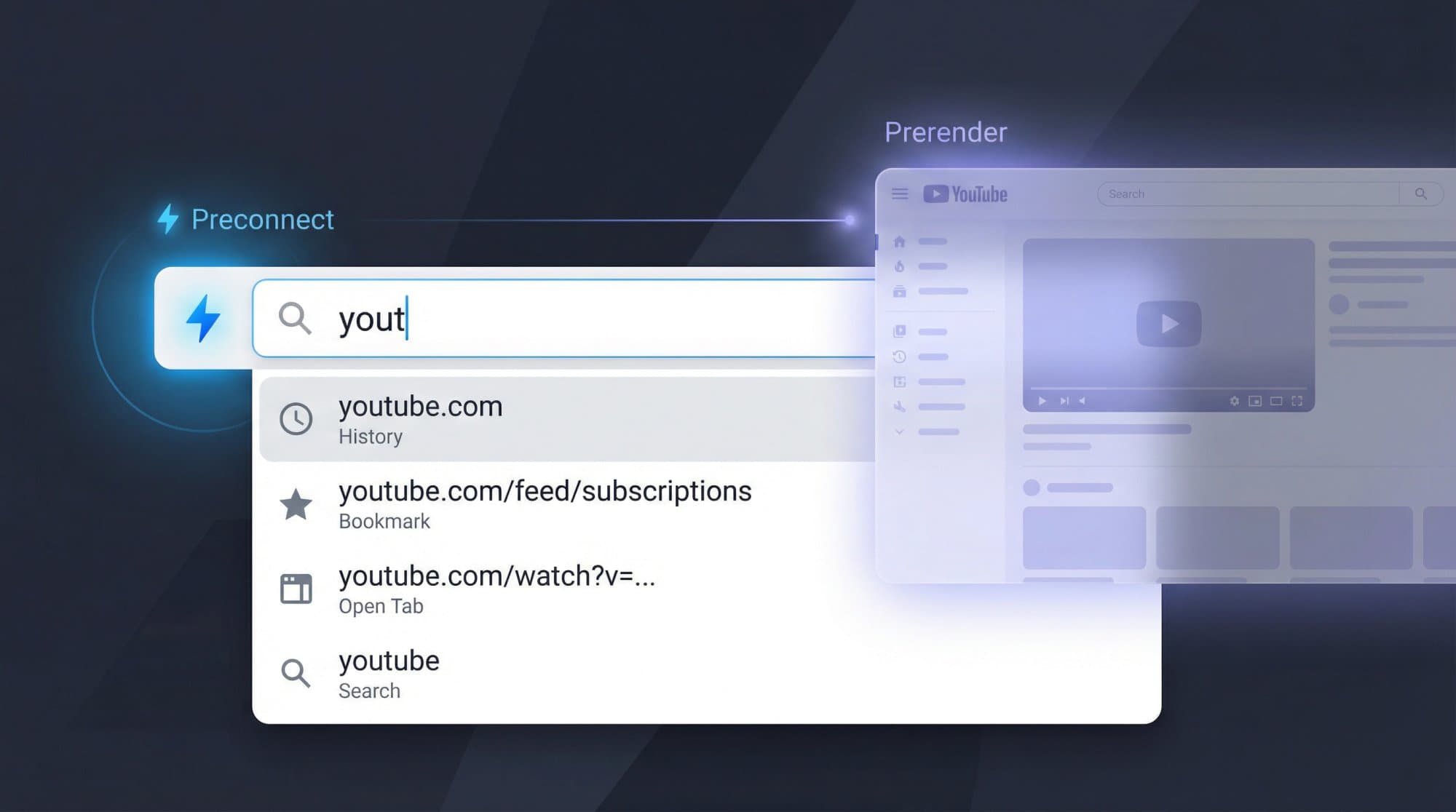
That's why frequently visited sites float to the top, and why the box seems to learn your habits. Firefox says its suggestions weigh how often and how recently you visited a page.
The privacy trade-off: with Improve search suggestions on, Chrome sends what you type, your IP address and cookies to your default search engine as you type. Firefox documents the same for its search suggestions and switches them off by default in Private Browsing. To stop it in Chrome, go to Settings → You and Google → Google services and turn off Improve search suggestions. Chrome will still suggest pages from your local history.
Google's Own URL: google.com and the Search URL Format
If you searched for "Google URL", here it is: https://www.google.com. Since April 2025 Google has been redirecting its country domains (google.co.uk, google.com.br and the rest) to google.com. Results have been localized by where you are since 2017, so the country versions were no longer needed.
Every Google search is also a URL you can build, bookmark or share. The basic format is:
https://www.google.com/search?q=your+search+terms
Add parameters with & to change what you get:
| Parameter | Example | What it does |
|---|---|---|
q | ?q=search+or+type+url | Your search terms (spaces become +) |
udm=14 | &udm=14 | The "Web" filter: plain links, no AI Overview |
udm=50 | &udm=50 | Opens the query in AI Mode |
hl | &hl=fr | Interface language |
tbs=qdr:w | &tbs=qdr:w | Results from the past week (d day, m month, y year) |
start | &start=10 | Page 2 of results |
Google doesn't officially document the udm values. The udm=14 trick became popular in 2024 as a way to get the classic "10 blue links" page, and some people set it as a custom search engine in their browser. One parameter you can no longer use is num=100 (100 results per page): Google switched it off in September 2025, which our zero-click study found cut the median site's reported impressions by 33% within days.
When Should You Search, and When Should You Type the URL?
Search when you are still deciding. Learning something, comparing options, troubleshooting, or looking for a site whose address you don't remember: how to stop chrome redirects, restaurants open now near me.
Type the URL (or use a bookmark) when you know the destination. It is faster and skips the results page. It is also safer for anything involving a login or money: typing yourbank.com or using a bookmark avoids clicking a sponsored result or a look-alike site that imitates the real one.
For site owners, the split matters. People who type your URL already know you. People who search are still choosing, and that's the traffic SEO competes for. Our guide to organic search vs direct traffic shows how the two show up in analytics.
How to Fix the Address Bar When It Misbehaves
You typed a URL but it searched instead
Usually one of four things:
- The input was ambiguous.
amazonis a word;amazon.comis an address. Add the domain ending or a trailing slash. - Autocomplete grabbed a search suggestion. Arrow down to the bad suggestion and press Shift + Delete (Shift + fn + Delete on Mac) to remove it, as Chrome's shortcut page describes.
- Your search engine or an extension changed. Firefox notes that extensions can change your default engine.
- Something hijacked the browser. See the next section.
Your search engine or homepage changed on its own
Take this one seriously. Chrome's help page says that unexpected changes to your search engine can mean malware, and so can a search engine setting that won't stick. Firefox describes search hijacking as third-party software changing your settings without permission, usually to push ads or paid results.
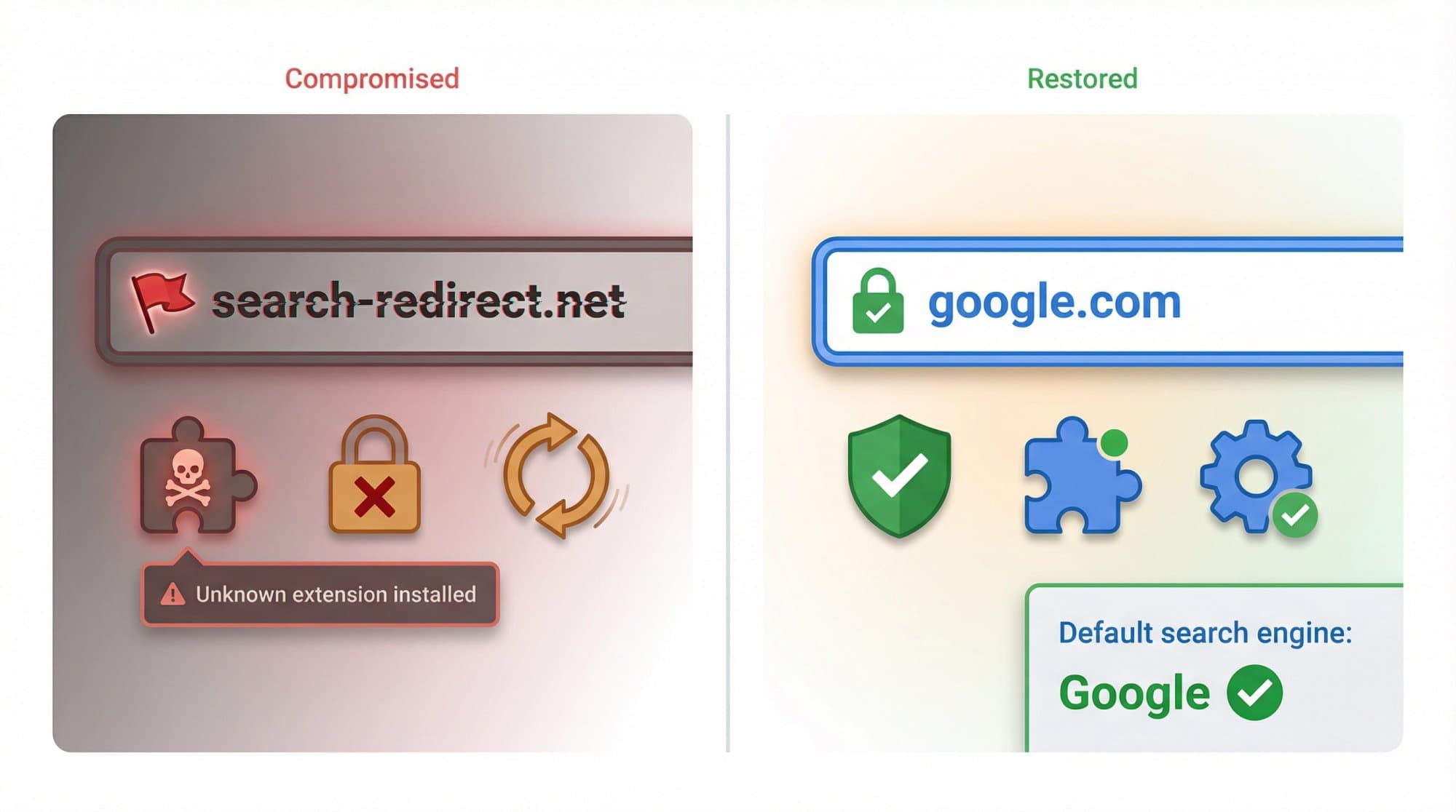
Warning signs: a homepage you didn't set, a search engine you've never heard of, typed addresses redirecting somewhere else, a toolbar or extension that appeared on its own, or settings that revert after you change them. One exception: on a work or school computer, your admin can lock the search engine on purpose. That's policy, not malware.
Interactive checklist
Browser hijack cleanup checklist
0/7
Your progress is saved in this browser, so you can come back to it later.
How to Change Your Search Engine, Homepage and New Tab Page
There is no switch that removes the phrase "Search Google or type a URL". What you control is the search engine behind it, what opens on startup, the New Tab page and suggestions.
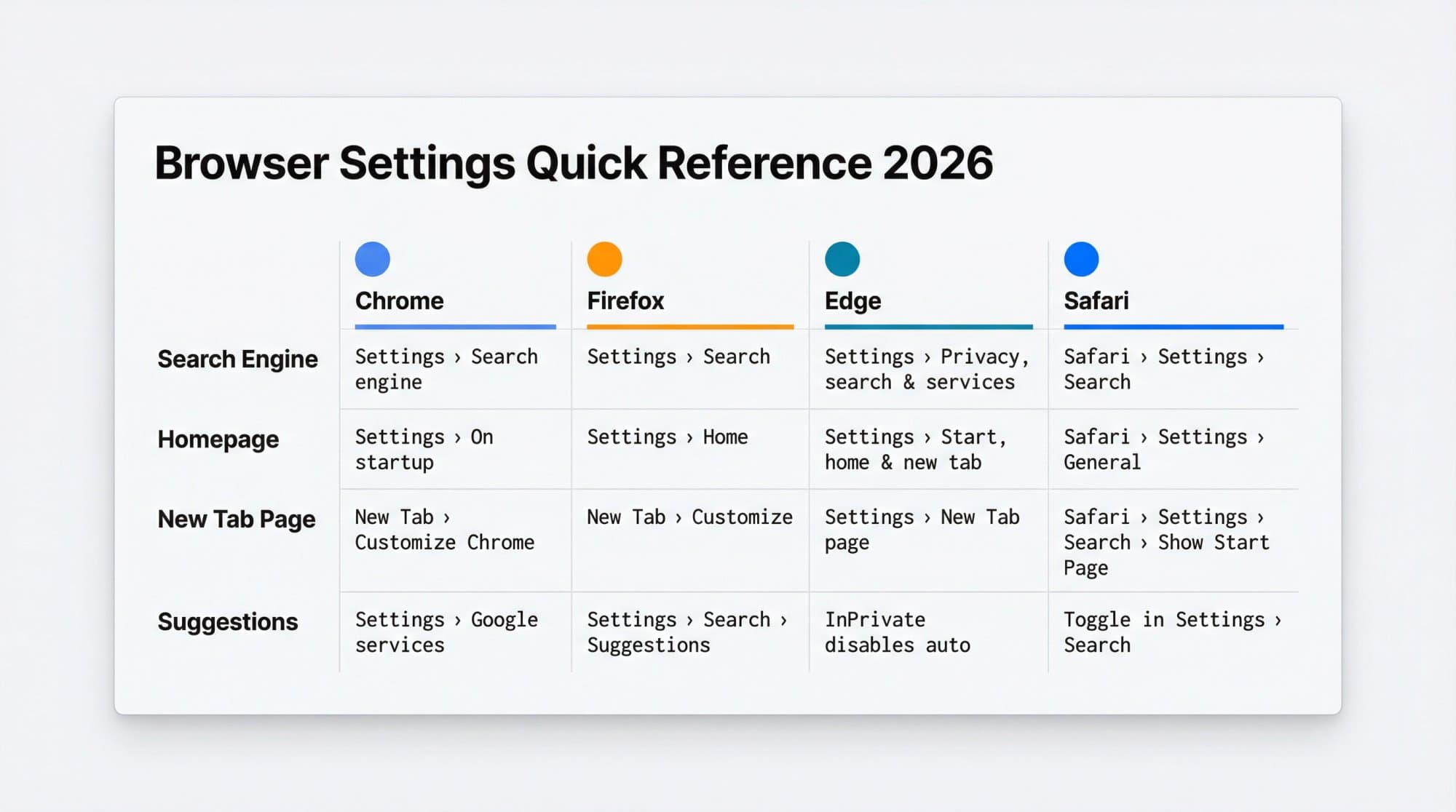
Chrome
- Search engine: ⋮ menu → Settings → Search engine → Change (Google's steps). The prompt in the box updates to the new engine's name.
- Startup and homepage: Settings → On startup, and Settings → Appearance for the Home button.
- New Tab page: open a new tab and click Customize Chrome in the corner.
- Suggestions: Settings → You and Google → Google services → Improve search suggestions.
Firefox
- Search engine and suggestions: Settings → Search (Mozilla's guide).
- Homepage and new windows: Settings → Home (how to set the home page).
Microsoft Edge
- Search engine: type
edge://settings/searchin the address bar and pick a new engine under the address bar search setting. Microsoft notes that an engine may only appear in the list after you've searched with it once. - Startup and New Tab page: Settings → Start, home, and new tabs.
Safari
- Search engine and suggestions: Safari → Settings → Search on Mac, or Settings → Apps → Safari → Search Engine on iPhone. Apple lets you use a different engine in Private Browsing.
- Homepage: Safari → Settings → General.
Thinking of switching away from Google altogether? Our comparison of alternative search engines covers privacy, AI answers and which engines run their own index.
Address Bar Shortcuts Worth Knowing
Once you know the box is a command line, a few shortcuts save real time:
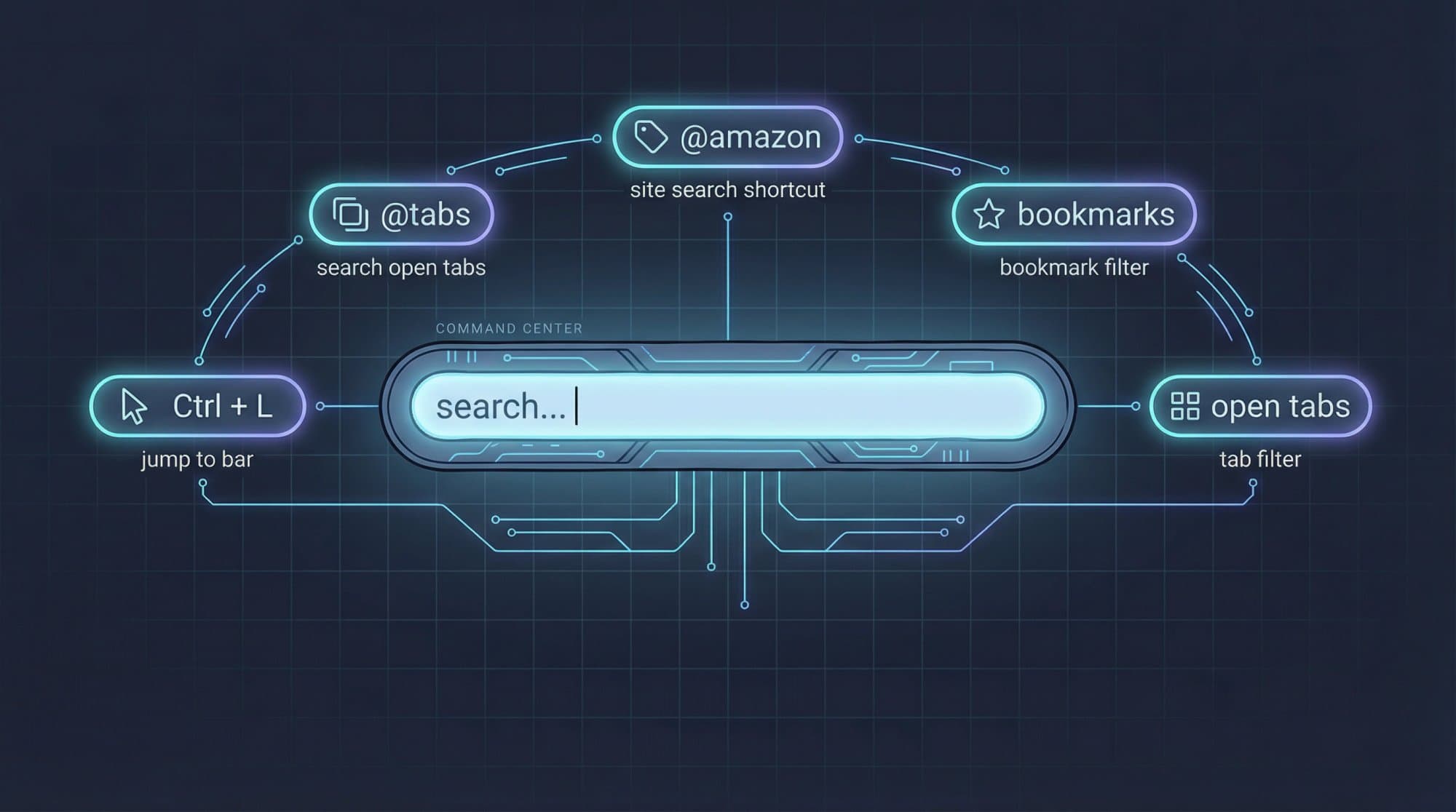
Address bar shortcuts by browser
| Ctrl + L, Alt + D or F6 (⌘ + L on Mac) | Chrome, Edge, Firefox, Safari | Jumps to the address bar |
| Name + Ctrl + Enter (Ctrl + Return on Mac) | Chrome | Adds www. and .com, then opens the site |
| Search term + Alt + Enter | Chrome (Windows) | Opens the results in a new tab |
| Address + ⌘ + Return | Chrome (Mac) | Opens the site in a new background tab |
| Ctrl + K or Ctrl + E | Chrome (Windows) | Search from anywhere on the page |
| Down arrow, then Shift + Delete | Chrome | Removes a bad suggestion |
| @tabs, @bookmarks or @history + Space | Chrome | Searches only your open tabs, bookmarks or history |
| Trailing slash (intranet/) | Chrome | Forces the input to be treated as an address |
| Site name + search term (wikipedia einstein) | Safari | Quick Website Search inside that site |
Click a column header to sort.
The @tabs, @bookmarks and @history shortcuts arrived in Chrome 108. You can also add your own site search shortcuts under Settings → Search engine → Manage search engines and site search, for example a keyword that searches your company wiki.
What This Box Means If You Run a Website
Every time someone uses that box, they make one of two choices, and they're worth very different things to a business.
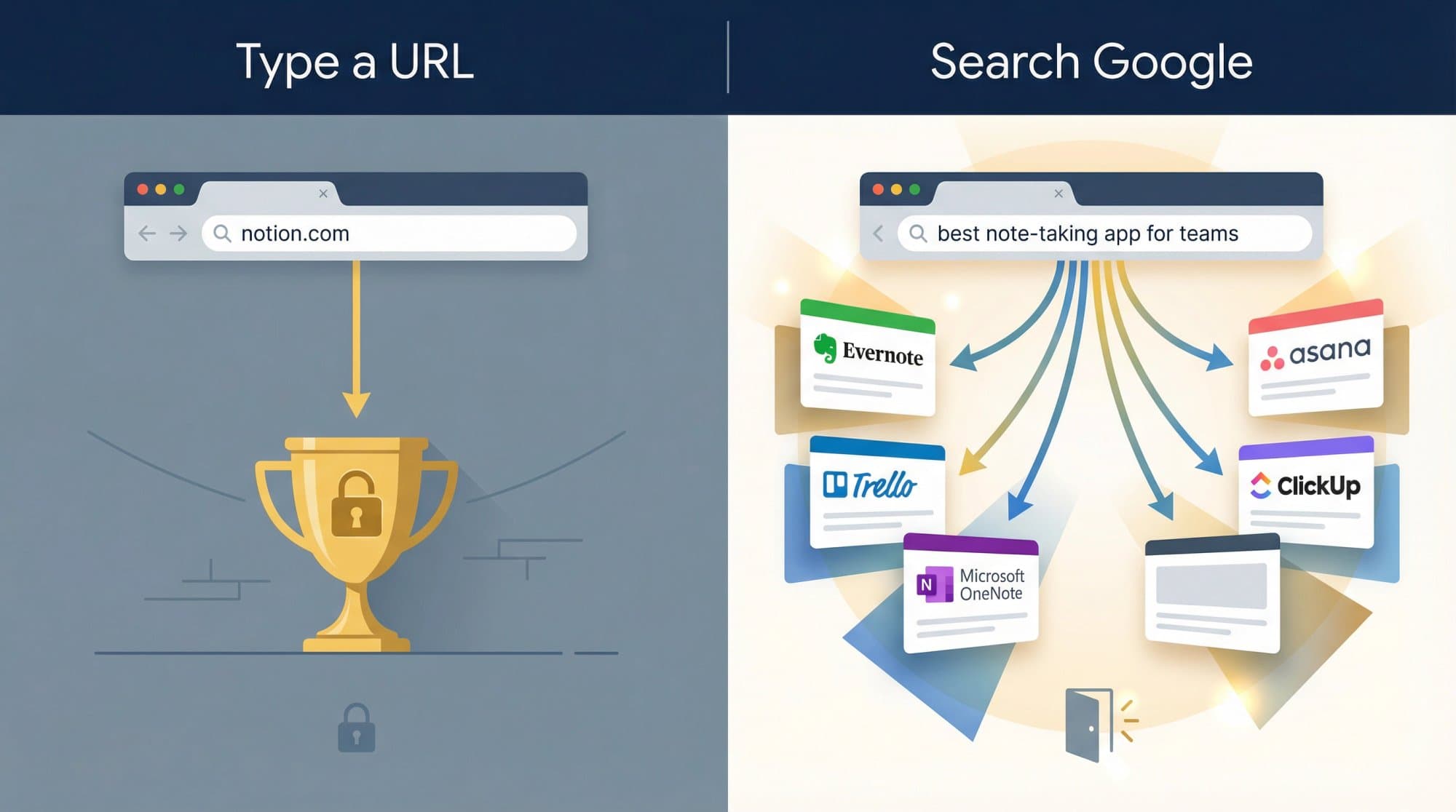
If someone types notion.com, Notion already won. If they type best note-taking app for teams, every product with a strong page on that topic has a shot. The searchers are the people you can still reach, and they search in their own words, often long and specific ones. That's why long-tail keyword research and consistent publishing beat chasing a handful of head terms: see our keyword research tutorial and how to rank on Google.
The "Ask Google" wording is a hint about where this goes. People are being nudged to type full questions, and some of those questions get answered by AI Mode or an AI Overview before anyone clicks. Pages that answer the question directly, in the first lines, are the ones that get quoted and clicked.
Outrank's job is the publishing side of this: it finds the searches your site can realistically win, writes and publishes one article a day to your CMS, and builds backlinks through its exchange. If you'd rather plan it yourself, the free Blog Keyword Generator turns a topic into a list of questions people actually search.
FAQ
Is "Search Google or type a URL" a virus?
No. It's the normal hint text in Chrome's search box, telling you it accepts both searches and web addresses. Worry only if your search engine or homepage changes without you, or typed addresses redirect to unfamiliar sites, which Chrome says can point to malware.
Why does my Chrome say "Ask Google or type a URL"?
It's the newer wording Google uses on the New Tab page as it pushes AI Mode. The box works the same: words search Google, addresses open the site, and an AI Mode button (where available) sends your question to AI Mode instead.
What does "Search or type URL" mean?
It's the same prompt on Chrome for Android and iPhone, shortened to fit a phone screen. Type words to search with your default engine, or type a web address to go straight to that site.
What does "Search or type web address" mean?
It's another wording of the same two-in-one box, used by older Android versions of Chrome and other apps. Type a search or a web address; the browser decides which one you meant based on whether the text looks like an address.
What is Google's URL?
Google's homepage is https://www.google.com, and a search URL looks like https://www.google.com/search?q=your+words. Since 2025 Google has been redirecting country domains such as google.co.uk to google.com.
Can I remove the "Search Google or type a URL" text?
Not with a setting. You can change the search engine behind it (the text then names the new engine), change your New Tab page with Customize Chrome, or set a different homepage. That's usually what people want when they ask this.
Why does typing a single word search instead of opening the website?
A single word like facebook could be a search or a site name, and browsers default to searching because most single words are meant as searches. Type facebook.com, add a trailing slash, or press Ctrl + Enter in Chrome to open the site.
Does typing in the address bar send my data to Google?
It sends what you type to your default search engine when search suggestions are on, along with your IP address and cookies, according to Chrome's help page. Turn off Improve search suggestions in Chrome, or search suggestions in Firefox, Edge and Safari, to stop it.