

Ready to publish your first post? It all starts in the WordPress dashboard. To get going, you’ll log in, head over to the Posts menu on the left, and click Add New Post. This simple action opens the content editor, which is where the magic happens.
Navigating the WordPress Dashboard for the First Time
Logging into WordPress for the first time can feel like stepping into the cockpit of an airplane. You’re met with a wall of menus, widgets, and notifications that can seem pretty overwhelming.
But here’s the secret: you don’t need to know what every single button does right away. To get your first post live, you only need to focus on a few key areas. The main navigation menu on the left is your mission control, and we’ll stick to the essentials for now.
Finding Your Starting Point
Every time you want to add a new article, your journey starts in the exact same place: the Posts menu.
When you hover your mouse over it, a few options will pop up. The one you’ll use 99% of the time is 'Add New Post'. Clicking it takes you straight to the editor—a blank canvas for your content. It’s a simple action that quickly becomes muscle memory.
Understanding the Editor Layout
Once you’re in the editor, you’ll notice it’s broken down into three main sections. Getting familiar with these is the key to a fast, efficient workflow.
- The Main Content Area: This is the big, open space in the middle. It’s where you’ll do all your writing, drop in images, and build out the structure of your post.
- The Top Toolbar: Look up. This bar at the very top of the screen holds your most-used tools—things like adding new content blocks, undoing a mistake, and the all-important preview and publish buttons.
- The Settings Sidebar: Over on the right, this panel is your pre-flight checklist. Here, you'll handle crucial settings like categories, tags, and your featured image before you hit publish.
Once you get the hang of this layout, you can stop hunting for settings and focus entirely on creating great content. It’s the difference between fumbling with the controls and flying on autopilot.
There's a reason WordPress powers over 43.5% of all websites on the internet. It has grown from a 21% market share back in 2014 to total dominance because its dashboard, while packed with features, is designed for creators.
Learning your way around is the foundation for everything else you'll do. For a closer look at what it takes to get comfortable with the platform, check out our guide on whether WordPress is easy to learn.
Creating Content With The Block Editor
So, you’re staring at the blank white screen of the WordPress editor. Don't be intimidated. This is where your ideas come to life, and thankfully, it's designed to be more like playing with digital LEGOs than wrestling with code.
The WordPress Block Editor, which you'll often hear called "Gutenberg," is your creative canvas. Every single element you add—a paragraph, a headline, an image, a quote—is its own self-contained "block." This modular approach is a game-changer because it gives you incredible freedom to structure your content exactly how you want.
Getting started is as simple as it gets. Just start typing. That first bit of text automatically becomes a Paragraph block. Hit the 'Enter' key, and boom, WordPress creates another one for you. Need something more exciting than text? Click the little + icon, and you’ll open up a library packed with all the blocks you need to build a truly engaging post.
Mastering The Essential Blocks
While WordPress offers a huge library of blocks, you'll find yourself coming back to a core few for almost every article you write. Getting comfortable with these is the secret to a fast, efficient workflow.
You'll spend most of your time with these four:
- Paragraph Block: The workhorse for all your standard text.
- Heading Blocks: These (H2, H3, H4) are non-negotiable for creating a clear hierarchy. They break up your content into digestible sections and are absolute gold for your SEO.
- Image Block: A picture is worth a thousand words, right? This block lets you easily upload visuals from your computer or pull from your Media Library to make your posts pop.
- List Block: Perfect for organizing information into scannable, easy-to-read bulleted or numbered lists.
This infographic gives you a quick visual of how these fundamental pieces click together to form a complete, polished post.
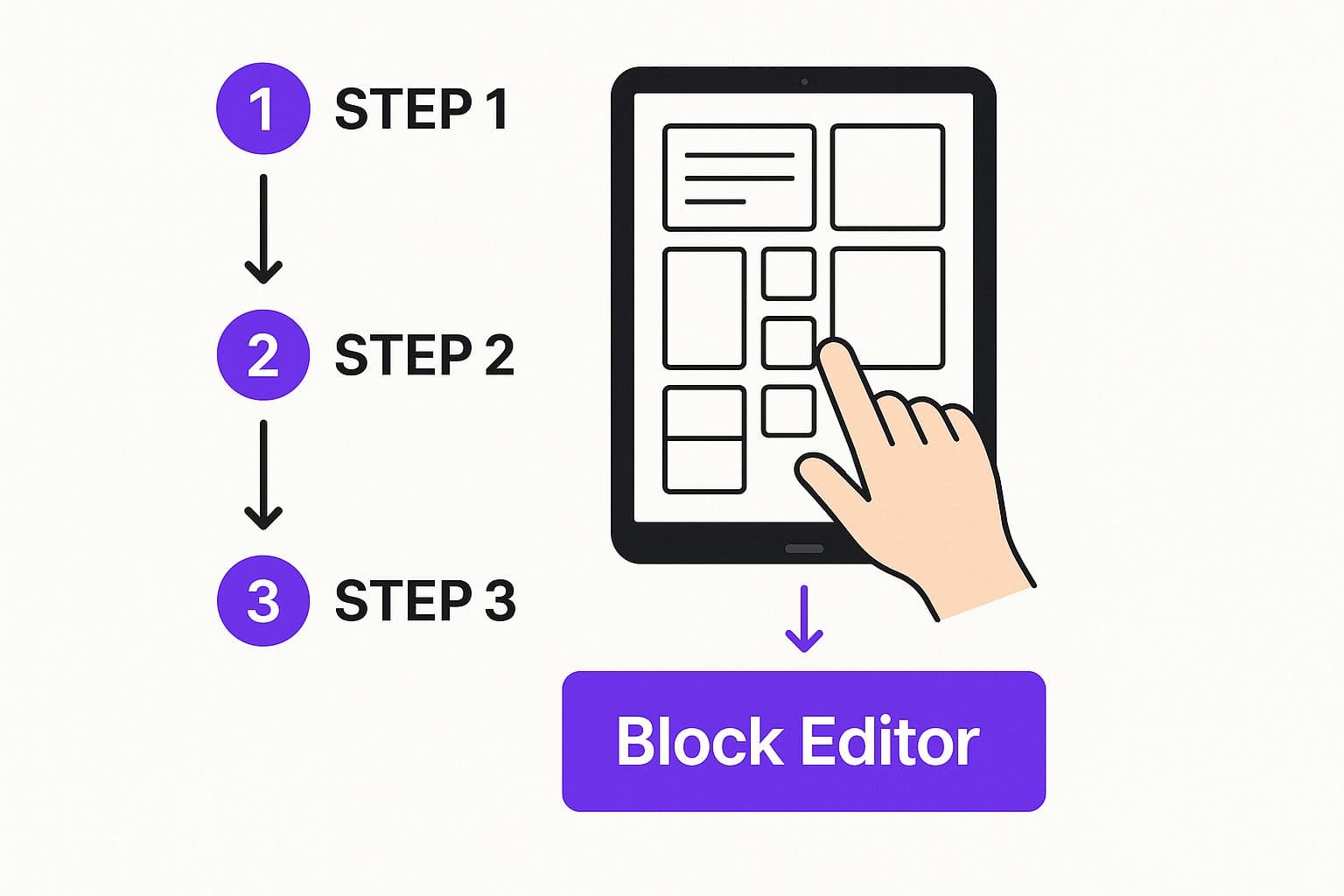
As you can see, it’s all about mixing and matching. A strong heading, followed by a few paragraphs of text, broken up by a compelling image—that’s the basic rhythm. Once you master how to arrange these core elements, you've nailed a solid blog post format.
I can't stress this enough: for anyone new to blogging, getting familiar with the most common blocks is your first big win. It will dramatically speed up your content creation process. To help you out, here’s a quick reference table of the blocks I use every single day.
| Block Name | Primary Use | Pro Tip |
|---|---|---|
| Paragraph | Writing standard body text. | Highlight text and use the toolbar to quickly add bold, italics, or links. |
| Heading | Structuring content with H2s, H3s, etc. | Never use an H1 in your post body; that's reserved for your main article title. |
| Image | Adding visuals to break up text. | Always fill out the "Alt text" field with a brief description for SEO and accessibility. |
| List | Creating bulleted or numbered lists. | Use lists to simplify complex information or outline steps in a process. |
| Quote | Highlighting key takeaways or expert quotes. | The "Pullquote" style is great for making a short, impactful statement stand out visually. |
Keep this handy. Sticking to these core blocks will help you build clean, professional-looking articles without getting lost in the weeds of more advanced features.
Arranging And Customizing Your Content
Once you have a few blocks on the page, moving them around is a breeze. Just click the up/down arrows or simply drag and drop a block to a new position. It feels completely intuitive.
But the real magic happens in the settings sidebar on the right. Every block has its own set of customization options. Want to change the font size for a specific paragraph? Easy. Need to add a background color to a heading to make it stand out? Done. How about adding a caption to your image? It’s all right there.
The block editor's flexibility is its superpower. You can create anything from a simple, text-only article to a dynamic, media-rich experience without ever touching a single line of code.
This user-friendly design is a huge reason why WordPress powers so much of the web. In fact, according to DiviFlash, WordPress users publish an incredible 27 new posts every single second. That massive adoption rate is a testament to how effectively the platform supports everyone, from solo bloggers to massive online stores.
Finalizing Your Post Before You Publish
That 'Publish' button is tempting, isn't it? But hold on a second. The real magic happens in the small details you handle right before you go live. These final touches are what separate amateur blogs from professional ones, giving your content the polish it needs to stand out and actually get discovered.
Your pre-publish checklist should always start with a compelling featured image. This is the thumbnail that shows up on your blog’s main page and, more importantly, when your article gets shared on social media. A great image grabs attention and makes people want to click.
You'll find all these crucial pre-publish settings neatly tucked away in the right-hand sidebar of the WordPress editor.
As you can see, options for permalinks, categories, tags, and that all-important featured image are all organized for quick access. Don't skip these.
Next up: your categories and tags. Think of categories as the main table of contents for your blog—broad topics like "Marketing" or "Productivity." Tags are more like the index at the back of a book; they're the specific keywords that describe the post's nitty-gritty details, like "email marketing" or "time management." Using both helps readers and search engines make sense of your content.
Speaking of visuals, if you want to get serious about how they perform, our guide on how to optimize images for web is a must-read.
Fine-Tuning Your Post Settings
Beyond the basics, a few more settings deserve your attention before you hit publish.
The permalink is your post's unique URL. By default, WordPress might spit out a clunky URL with the date and full title. For cleaner SEO, you absolutely want to edit this. Make it short, descriptive, and include your primary keyword. For instance, yourdomain.com/2024/07/my-very-first-post-is-here should become something like yourdomain.com/how-to-publish-wordpress-post. Much better.
Finally, write a sharp excerpt. This is a short, one- or two-sentence summary of your post that often appears on your blog homepage and in search engine results. It's your "elevator pitch" to convince someone that clicking on your article is worth their time.
Taking just five extra minutes to dial in these settings can dramatically improve your post's visibility and user experience. It’s a small investment that pays big dividends in traffic and engagement.
By mastering these final steps, you ensure every single piece of content you publish on WordPress looks professional, is easy to find, and is ready to make a real impact.
Using Publish and Schedule Options Strategically
Timing can make all the difference. While it’s tempting to smash that big blue “Publish” button the second you’re done writing, WordPress gives you much finer control over when your content actually goes live. Mastering these options is a small step that makes your blog feel professional and consistent.
Not quite ready to go live? No problem. If an idea strikes but you don't have time to flesh it out, just jot down your thoughts and hit Save draft. This tucks it away safely for you to finish later.
Plan Your Content Calendar
This is where the real strategy comes into play. Let's say you block out your Sunday afternoon for writing. Instead of publishing four articles at once, you can write them all, then schedule each one to go live on different days throughout the coming week.
This is a classic productivity hack called content batching, and it’s a lifesaver for busy creators. It creates a steady, reliable stream of new posts for your audience, even when you're swamped with other work.
To schedule a post, just look for the "Publish" setting in the sidebar and click the link that says "Immediately." A calendar will pop up, letting you pick the exact date and time you want the article to appear. This is how you build a predictable publishing rhythm—something both your readers and search engines will appreciate. For a deeper dive, check out our guide on how to create an editorial calendar to map everything out.
Think of the scheduling tool as your personal content assistant. It works for you 24/7, pushing your best work live at the most optimal times for your audience, whether you're at your desk or on vacation.
Finally, you’ve got a few visibility options for extra control. You can set a post to Private if you want to share it internally for review, or make it Password Protected for exclusive content that only certain readers can access. These settings ensure every post is absolutely perfect before it’s ready for the world.
Take Your Workflow to the Next Level with Essential Plugins
Hitting “Publish” is a great feeling, but the out-of-the-box WordPress experience is really just the starting line. The platform’s real magic comes from its massive plugin ecosystem, which can automate tedious tasks, boost your post's performance, and save you hours of manual effort.
Think of plugins as specialized apps for your website. They transform the basic act of writing and publishing into a strategic operation. This is the difference between just making content and building a blog that actually grows.
The First Plugins You Should Install
If you’re new to WordPress, a few plugins are non-negotiable. First up, you absolutely need an SEO plugin like Yoast or Rank Math. These tools add a simple checklist right inside your editor, guiding you to optimize your title, meta description, and content for search engines before you publish. It’s like having an SEO expert looking over your shoulder.
Social sharing plugins are just as crucial. Tools like Social Warfare or Sassy Social Share add share buttons directly to your posts, making it dead simple for readers to blast your content across their favorite platforms with a single click.
Installing a few key plugins is the fastest way to upgrade your publishing process. It turns the editor from a simple word processor into an optimization powerhouse, giving your content a fighting chance to get seen by a much wider audience.
Finally, think about a tool that connects content creation with publishing. Platforms like Outrank, for example, don't just help you generate SEO-driven articles; they also let you publish them directly to your WordPress site in one click. This is a core part of a modern content creation workflow because it closes the gap between writing and going live.
Here are a few types of plugins I always recommend starting with:
- SEO Plugins: To guide your on-page optimization.
- Social Sharing Plugins: To get readers to spread the word for you.
- Image Optimization Plugins: To automatically compress images and make your site load faster.
Have Questions About Publishing on WordPress?
Getting your content live on a new platform always feels a bit tricky at first. It’s totally normal to have questions. To help you get over those initial hurdles, let's walk through some of the most common sticking points I see people run into.
One of the first things people ask is if they can add a blog post directly to a specific page, like their "About Us" or "Services" page. The short answer is no—by default, all your posts land on your main blog feed. But you can create the illusion that they live on certain pages by using categories and custom menus. For instance, you could create a "Case Studies" category and then add a link to that category archive in your main navigation. Problem solved.
Posts vs. Pages: What’s the Real Difference?
This is a big one, and it trips up a lot of new users. The distinction between a Post and a Page is actually pretty simple once you get the hang of it.
Think of it like this: Posts are for timely, dynamic content—like your blog articles, news updates, or announcements. They're listed in reverse chronological order and are meant to be part of an ongoing conversation.
Pages, on the other hand, are for your static, "evergreen" information. This is stuff that doesn’t change often, like your Contact, Services, or About pages.
Understanding this is key to building a site that makes sense. Posts create momentum for your blog, while Pages provide the stable, foundational information your visitors need. Get this right, and your site structure will be solid from day one.
Best Practices for Your First Post
Alright, you're ready to hit "Publish" for the first time. What should you focus on to make sure your content actually gets seen and read?
Don't overcomplicate it. Just nail these fundamentals:
- A Killer Headline: Your title is everything. It's the first thing anyone sees, so spend time making it compelling and clear.
- Break Up Your Content: No one likes a wall of text. Use headings (H2s and H3s) to create scannable sections that guide the reader's eye.
- Add Some Visuals: Seriously, always include relevant images, screenshots, or even a short video. It keeps people engaged and makes the content easier to digest.
- Use Categories and Tags: This isn't just for you; it's for your readers and for search engines. Properly categorizing and tagging your post helps people find it, both on your site and through Google.
If you stick to these basics, your content will be well-written, easy to read, and discoverable. It's the perfect formula for getting started on the right foot.
Ready to stop manually copying and pasting your content into WordPress? Outrank generates SEO-optimized articles and publishes them directly to your site in a single click, saving you hours of work. Learn more about Outrank.