

Cloudflare Bot Fight Mode Blocking Requests (403 Error)
If you're receiving a 403 Forbidden error when trying to connect your WordPress site to Outrank, Cloudflare's Bot Fight Mode may be blocking legitimate API requests from our servers. This guide provides two solutions to resolve this issue.
Solution 1: Disable Bot Fight Mode
The simplest solution is to disable Cloudflare's Bot Fight Mode entirely. This is recommended if you don't rely heavily on bot protection or if you have other security measures in place.
Step 1: Access Cloudflare Dashboard
- Log in to your Cloudflare account at cloudflare.com
- Select your domain from the dashboard
Step 2: Navigate to Security Settings
- Click on "Security" in the left sidebar
- Select "Settings" from the submenu
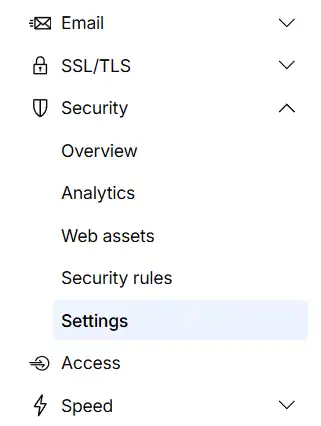
Step 3: Disable Bot Fight Mode
- Find the "Bot Fight Mode" toggle
- Switch it to "Off"
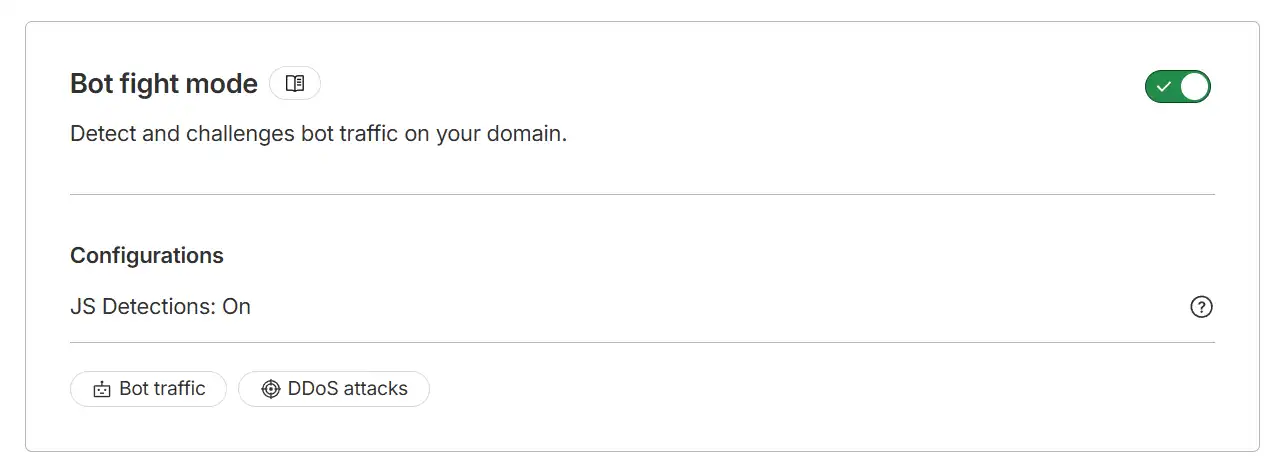
- The change takes effect immediately
Solution 2: Add IP Access Rule (Recommended)
This solution allows you to keep Bot Fight Mode enabled while specifically allowing requests from Outrank's server. This is the recommended approach as it maintains your security while enabling the integration.
Step 1: Get Your Zone ID
- Log in to your Cloudflare dashboard
- Select your domain
- On the Overview page, scroll down to the right sidebar to find the "API" section
- Copy the Zone ID (a 32-character string)
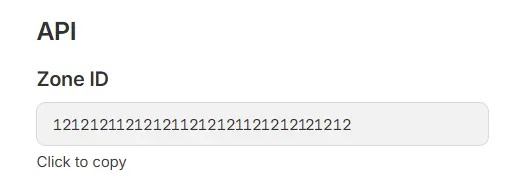
Step 2: Create an API Token
- Go to Cloudflare API Tokens
- Click "Create Token"
- Select "Create Custom Token" and click "Get started"
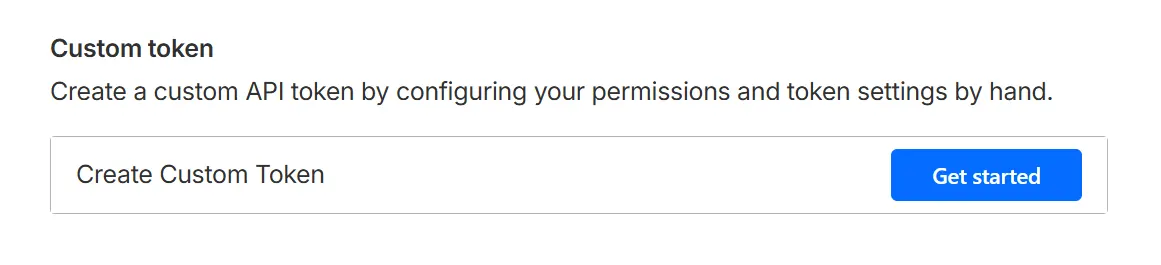
- Configure the token with these permissions:
- Token name: Outrank IP Whitelist (or any name you prefer)
- Permissions: Zone → Firewall Services → Edit
- Zone Resources: Include → Specific zone → [Your domain]
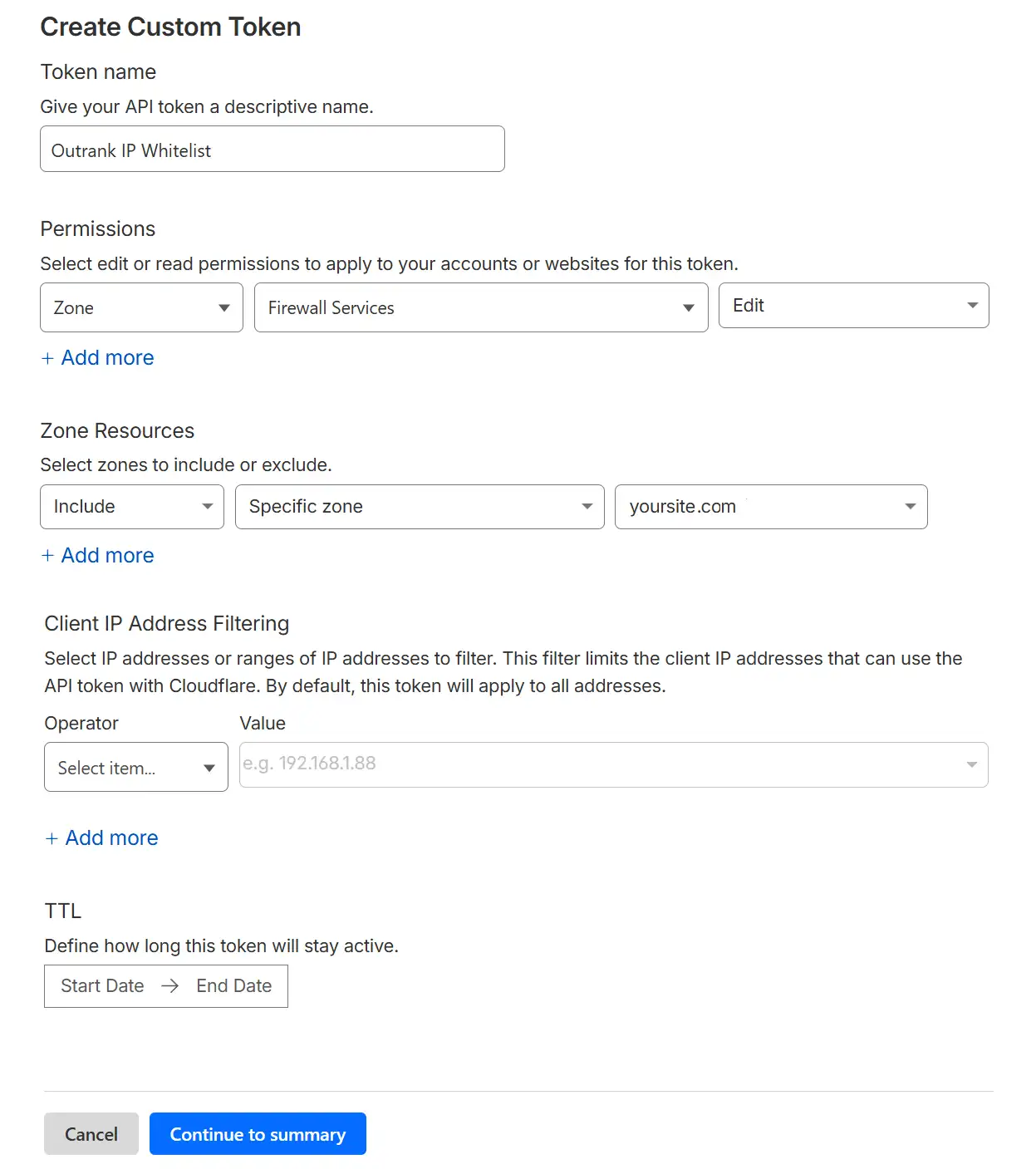
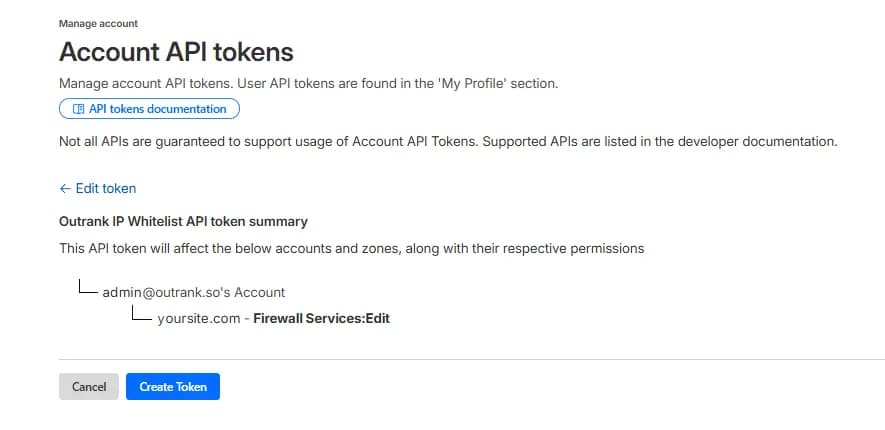
- Click "Continue to summary" and then "Create Token"
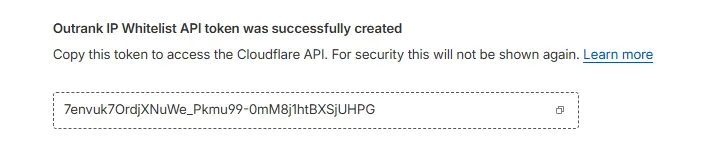
- Important: Copy the token immediately - it won't be shown again
Step 3: Create IP Access Rule
Use the form below to create the IP Access Rule.
IP Access Rule Setup
Verification
After applying either solution, return to Outrank and test your WordPress integration again. The 403 error should be resolved and the connection test should succeed.
Where to Find Your IP Access Rule
To verify the rule was created or to manage it later, go to your Cloudflare dashboard:
- Select your domain
- Navigate to Security → Security Rules
- You'll see the Outrank IP Access Rule in the list

Still Having Issues?
Error persists after whitelisting
Check if you have additional security plugins on WordPress (like Wordfence or Sucuri) that may also be blocking requests. You may need to whitelist the IP there as well.
API Token not working
Ensure your API token has the correct permissions (Zone → Firewall Services → Edit) and is scoped to the correct zone. Try creating a new token if issues persist.
Multiple Cloudflare accounts
Make sure you're logged into the correct Cloudflare account that manages your domain's DNS.
Need additional help with Cloudflare configuration?