


 Shopify SEO + Catalog Automation



Proof that compounds
Built on the same engine already driving millions of organic visits
Shopify stores get the ecommerce version of Outrank's proven content, backlink, and AI visibility system, now connected to real product catalogs.
750m+
Organic views generated
750k+
Articles created
25k+
Backlinks added
1,200+
Active users
"Our blog traffic is up nearly 10x and conversions have really improved."

Aidan Cramer
CEO & Co-Founder aiapply.co
"My traffic growth has never been more consistent."

Rohan Rajpal
Co-Founder spurnow.com
"I'd recommend it to anyone serious about SEO."

Antonio
Founder Eden AI Receptionist
Works forFashionBeautyHome goodsSupplementsSaaS ecommerce
Shopify integration
Not just publishing.
Product-aware SEO for your store.
Generic ecommerce articles waste intent. Outrank knows which products you sell, then writes guides, comparisons, and shopping content that can send readers to the exact Shopify product pages.
Connect Shopify
Outrank syncs your products, images, variants, categories, availability, and product page URLs.
Pick buying-intent keywords
Our keyword engine finds searches your future customers make before they buy.
Create product-led articles
Every article is written around the right products, with natural links back to your Shopify pages.
Publish to your Shopify blog
Send drafts or auto-publish directly to Shopify so organic visitors land closer to purchase.
Catalog management
Built for stores with
10k+ products
Large ecommerce catalogs should not create messy, unfocused content. Outrank syncs the catalog, retrieves the right products for each keyword, and keeps every article tied to real product data.
Catalog intelligence
Paginated Shopify catalog sync built for stores with 10k+ products
Smart retrieval chooses only the products that match each article topic
Product URLs are protected so links to your Shopify pages stay in the final article
Inventory, price, and SKU claims stay grounded in the catalog snapshot
Writing Examples
AI-generated content that humans love to read.
Check out the Outrank blog where All Articles are generated with Outrank:
Visit Our Blog
Personalized product images
Create in-context product images for every article
Product pages have packshots. Blog posts need stories. Outrank turns catalog images into context-aware visuals that make product-led content feel like a shopping editorial.
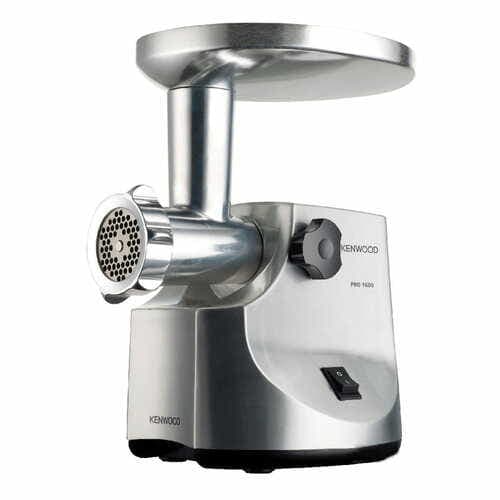
From your Shopify catalog
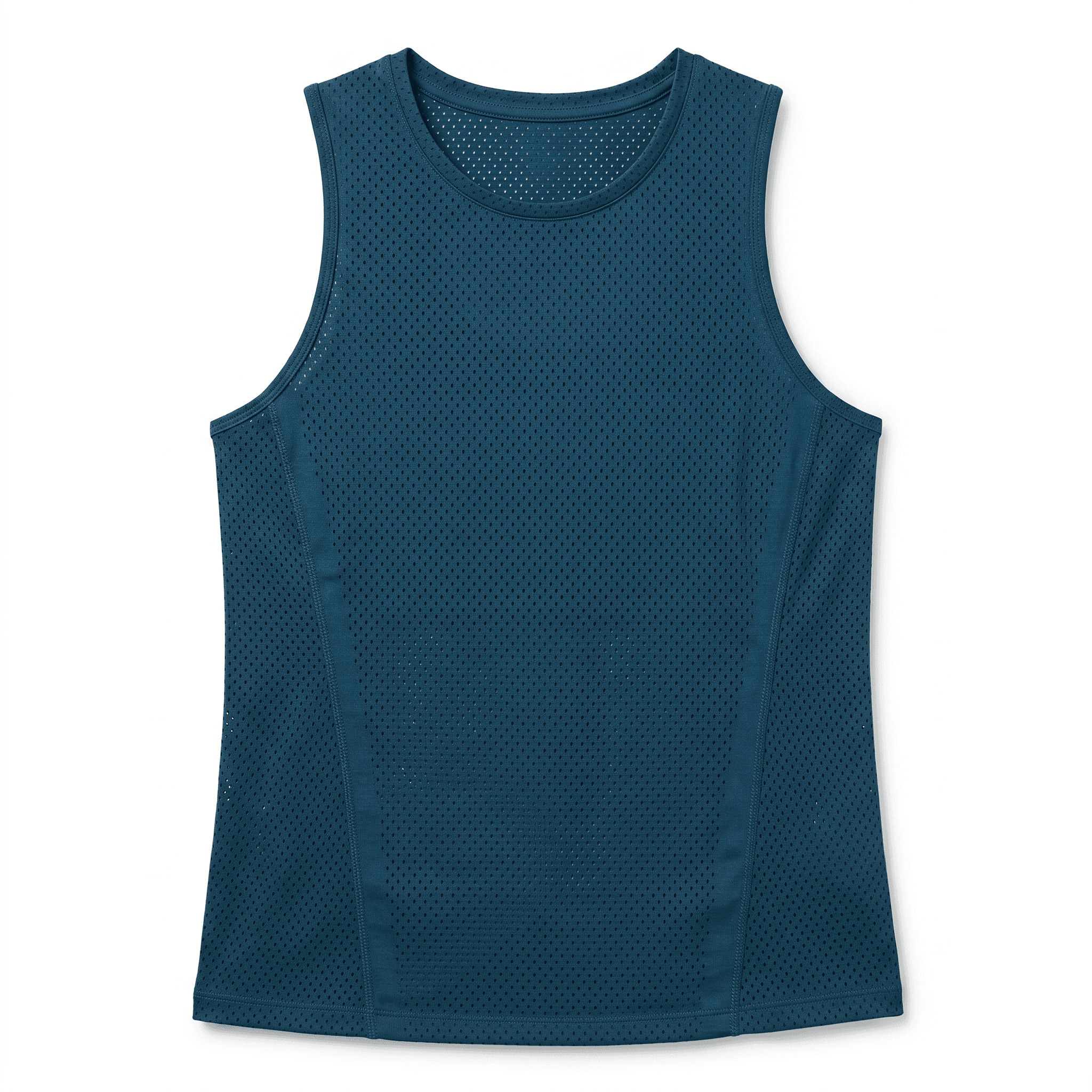
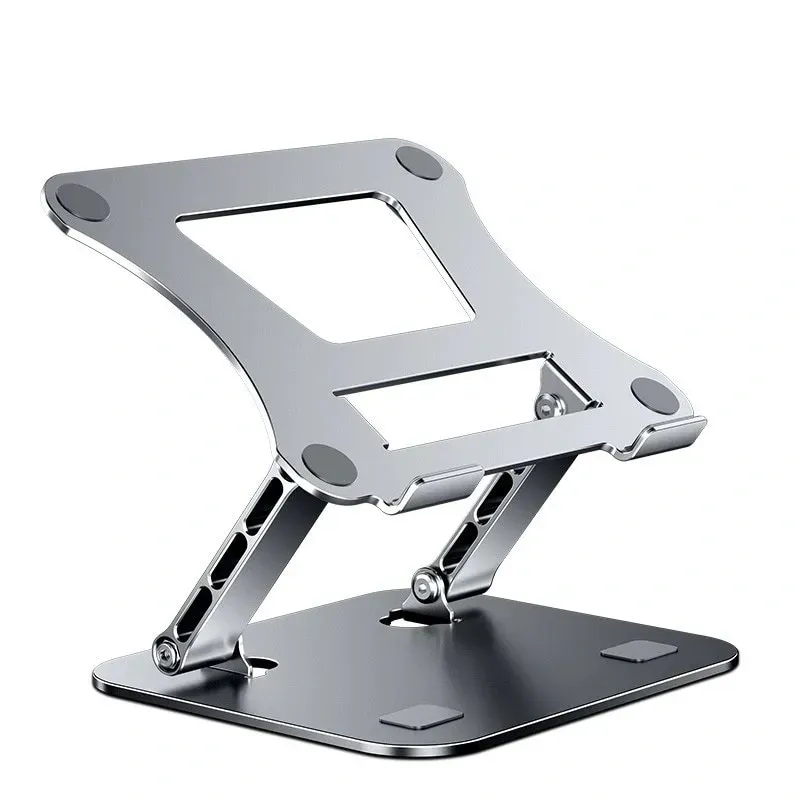
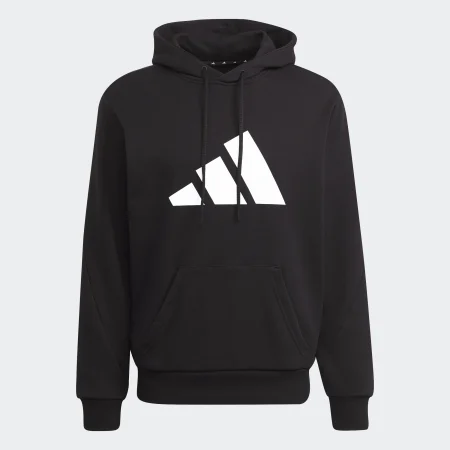
Running Tank
$48 · In stock
Meat Grinder Pro
$129 · In stock
ProStand Aluminum
$79 · In stock
Future Icons Hoodie
$85 · In stock
Editorial scene for the article
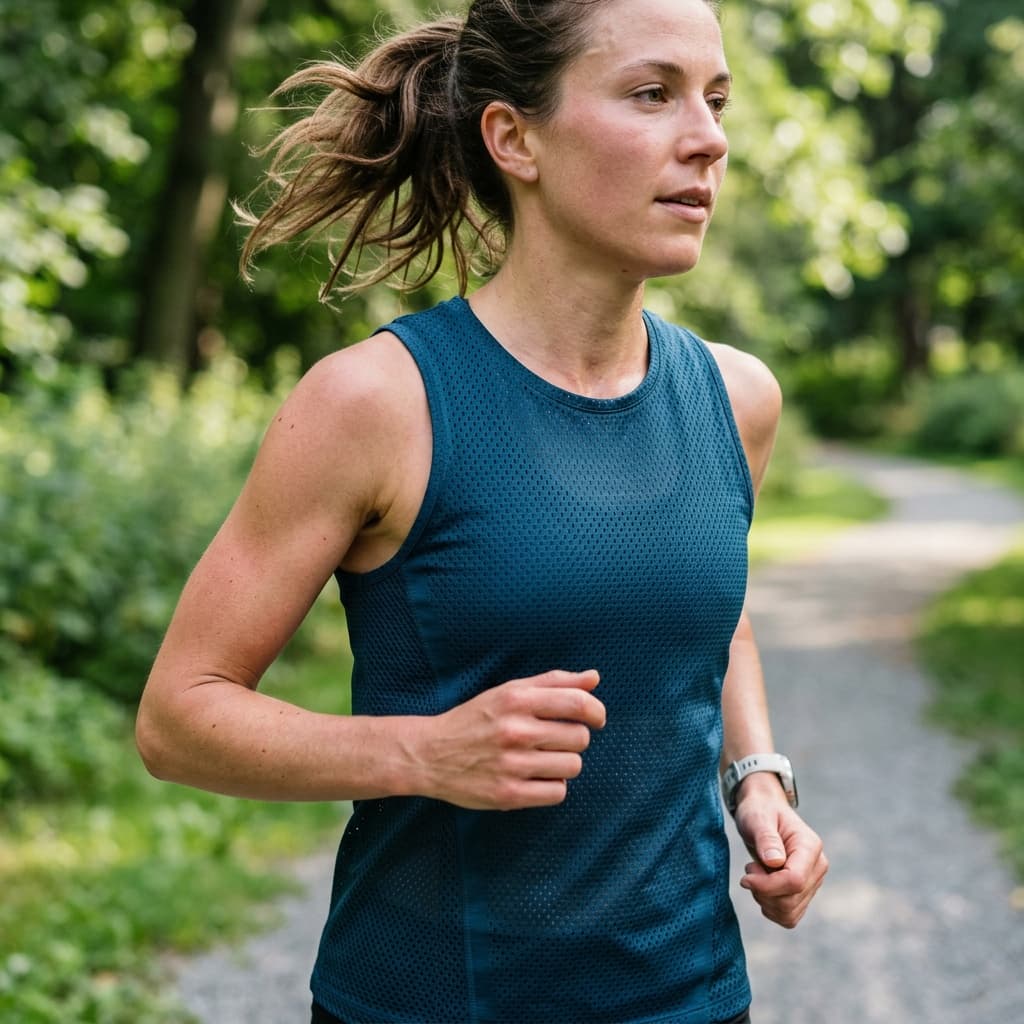
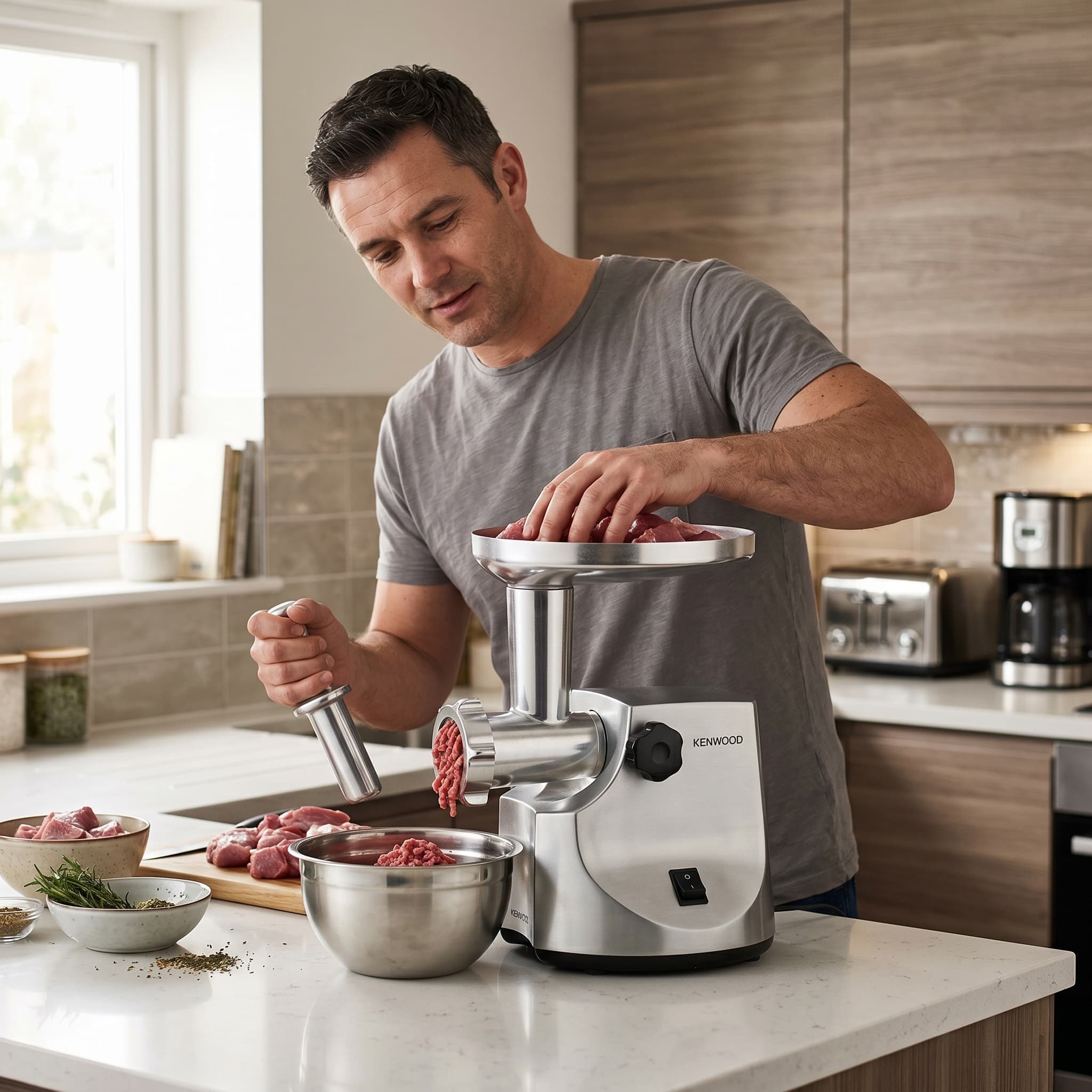


“Best breathable running shirts for humid weather”
“Home meat grinders for fresh burgers and sausage”
“Best laptop stands for an ergonomic remote setup”
“Minimalist black hoodies for everyday city style”
Scene typesOutdoorKitchenDeskOutfit
Uses your product images
Outrank references your catalog assets so the product stays recognizable.
Places products in context
Create editorial blog visuals like a kitchen counter, outfit scene, desk setup, or outdoor use case.
Matches the article intent
Images are generated around the keyword, article section, and product being promoted.

For ecommerce Meta ads
Paid social creates demand.
Outrank compounds it
This page is for store owners who already understand paid acquisition: ads prove what sells, then Outrank turns those angles into searchable content that keeps working after the campaign budget is gone.
Turn paid traffic into a memorable product story instead of another generic software page.
Lower blended CAC by building organic demand while Meta campaigns are running.
Retarget readers who clicked a shopping problem, guide, or product comparison article.


THE SEO MULTIPLIER
Backlinks are the ranking edge for Shopify SEO and AI mentions
Product-led content needs authority to rank. Outrank builds relevant backlinks to your store for you, lifting your Domain Rating and making you more likely to show up in Google results and AI recommendations.

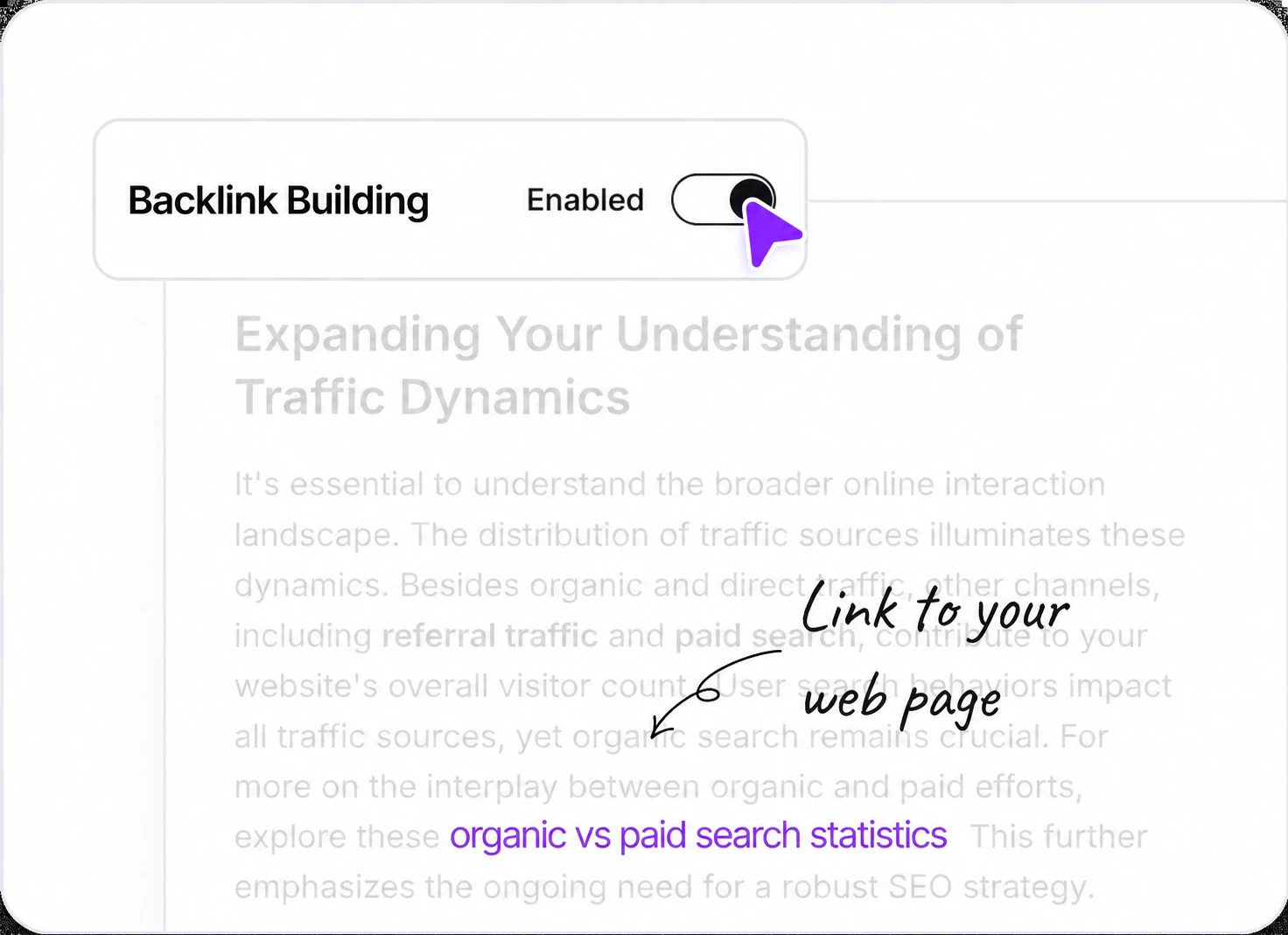
We build the links for you
Turn backlink building on once and Outrank keeps working. Our AI finds articles on other blogs that genuinely fit your topic and places a link to your website inside the copy. Every placement is checked for relevance and verified after it goes live.
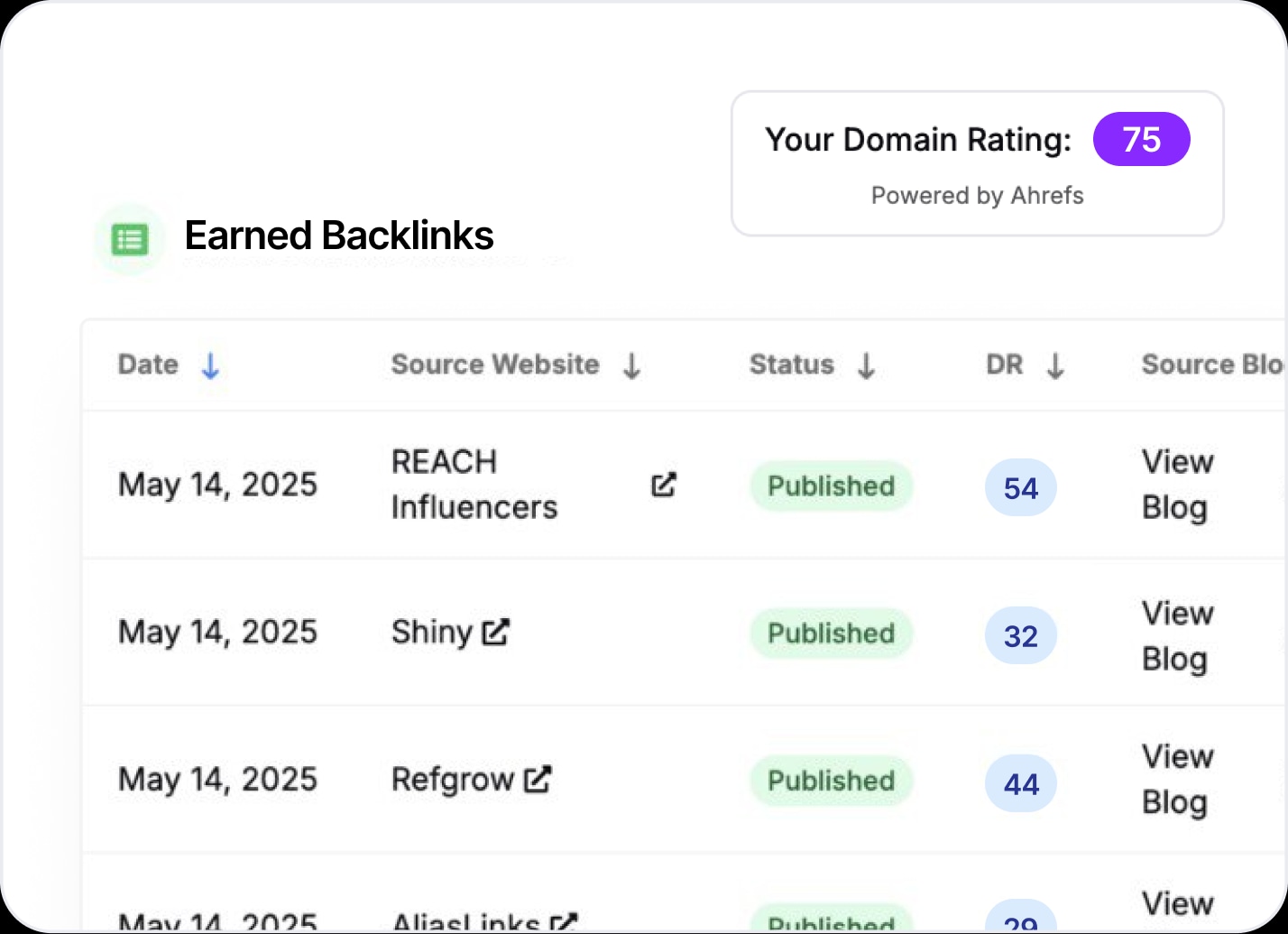
Track articles and results
You can monitor where your links are referenced and see your domain authority grow. Track the number of backlinks received and their direct impact on your SEO rating.
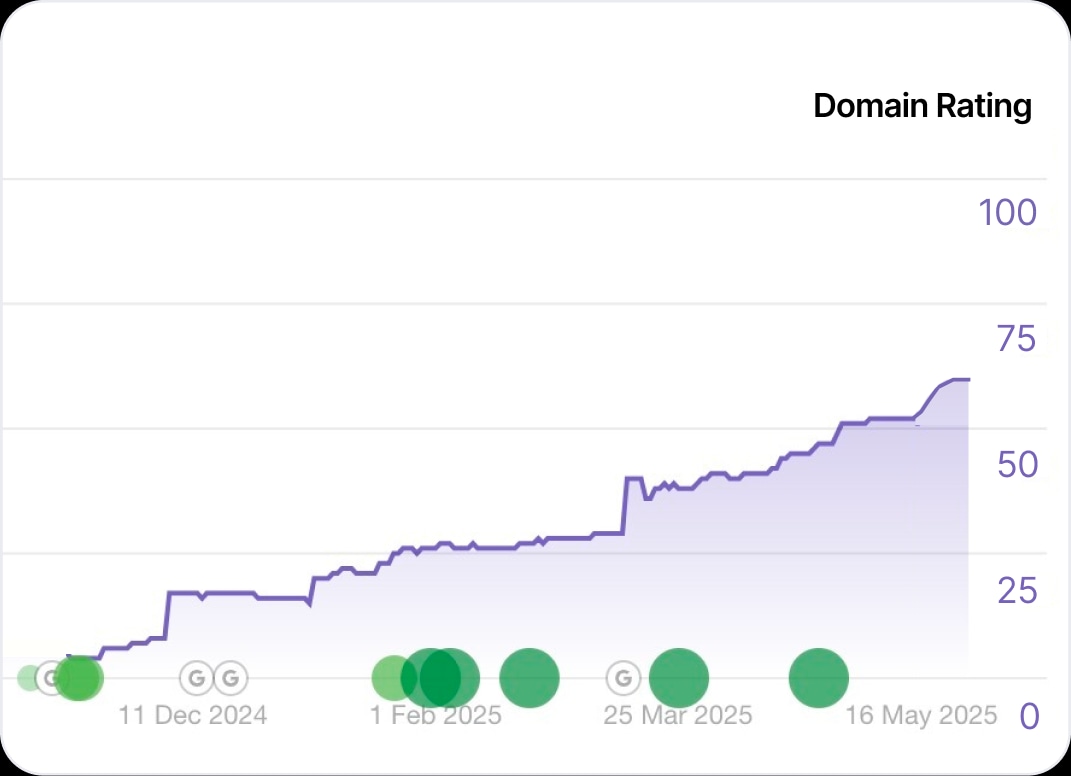
Your Domain Rating grows
Quality backlinks increase your Domain Rating, directly boosting your business growth. Higher Domain Rating is the backbone of organic traffic - bringing more qualified visitors who convert into customers.
AI IN SEO
Make AI recommend
Your Shopify Products
AI chooses businesses based on SEO. Learn how and get ahead

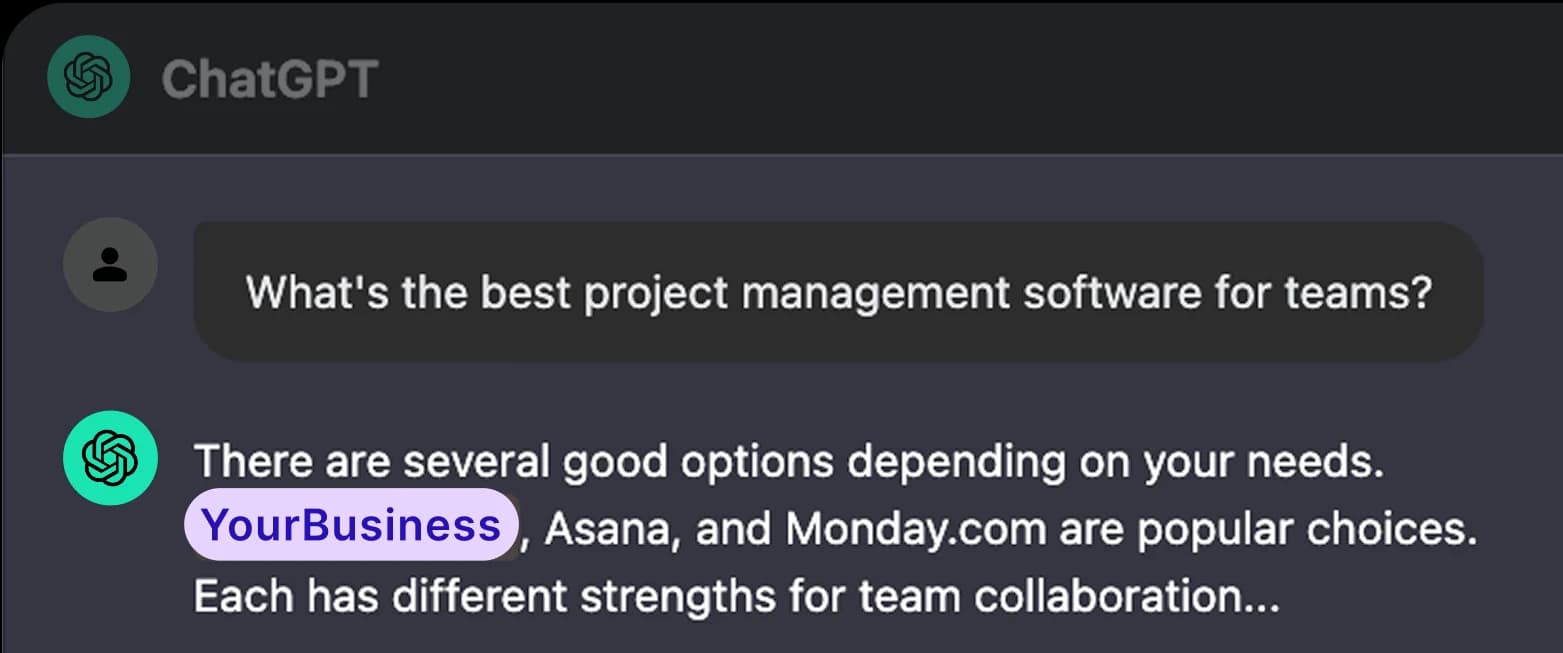
How AI chooses what to recommend?
When users ask questions to AI assistants, these tools scan web search results. Pages with better SEO rankings appear more often in AI responses.
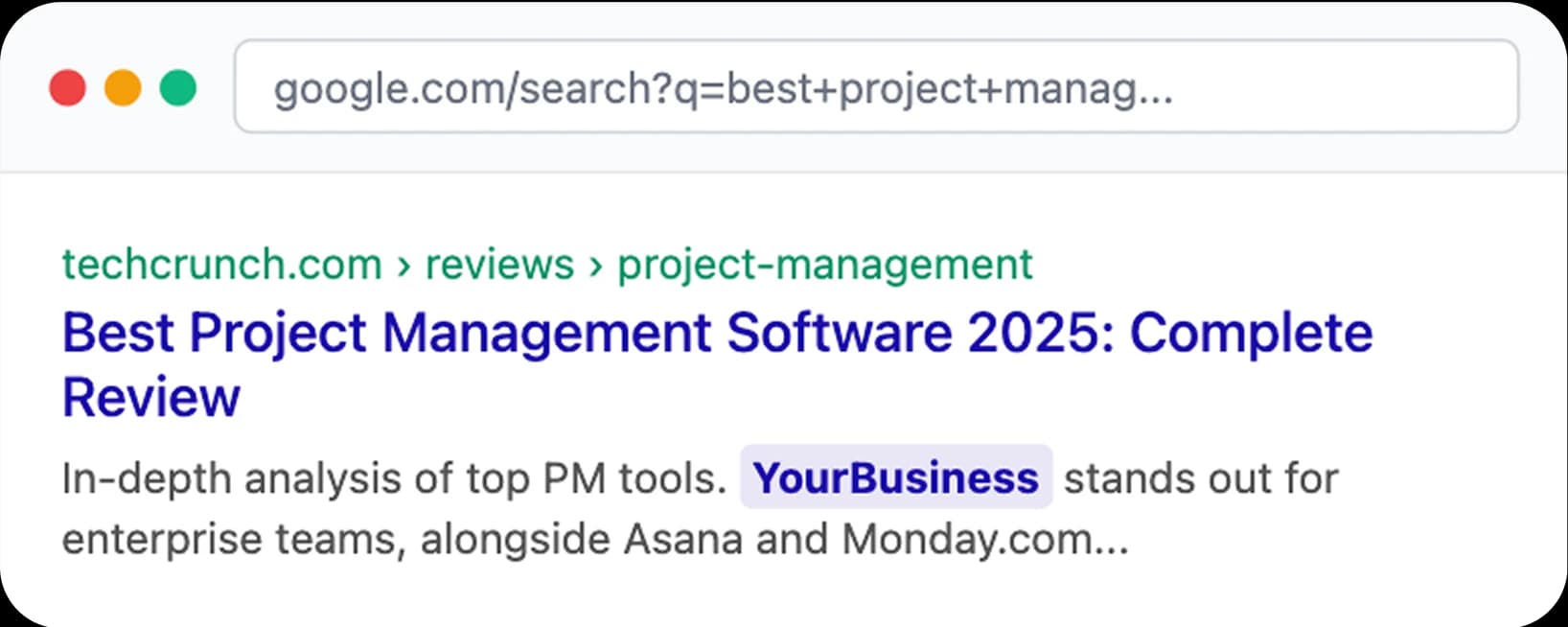
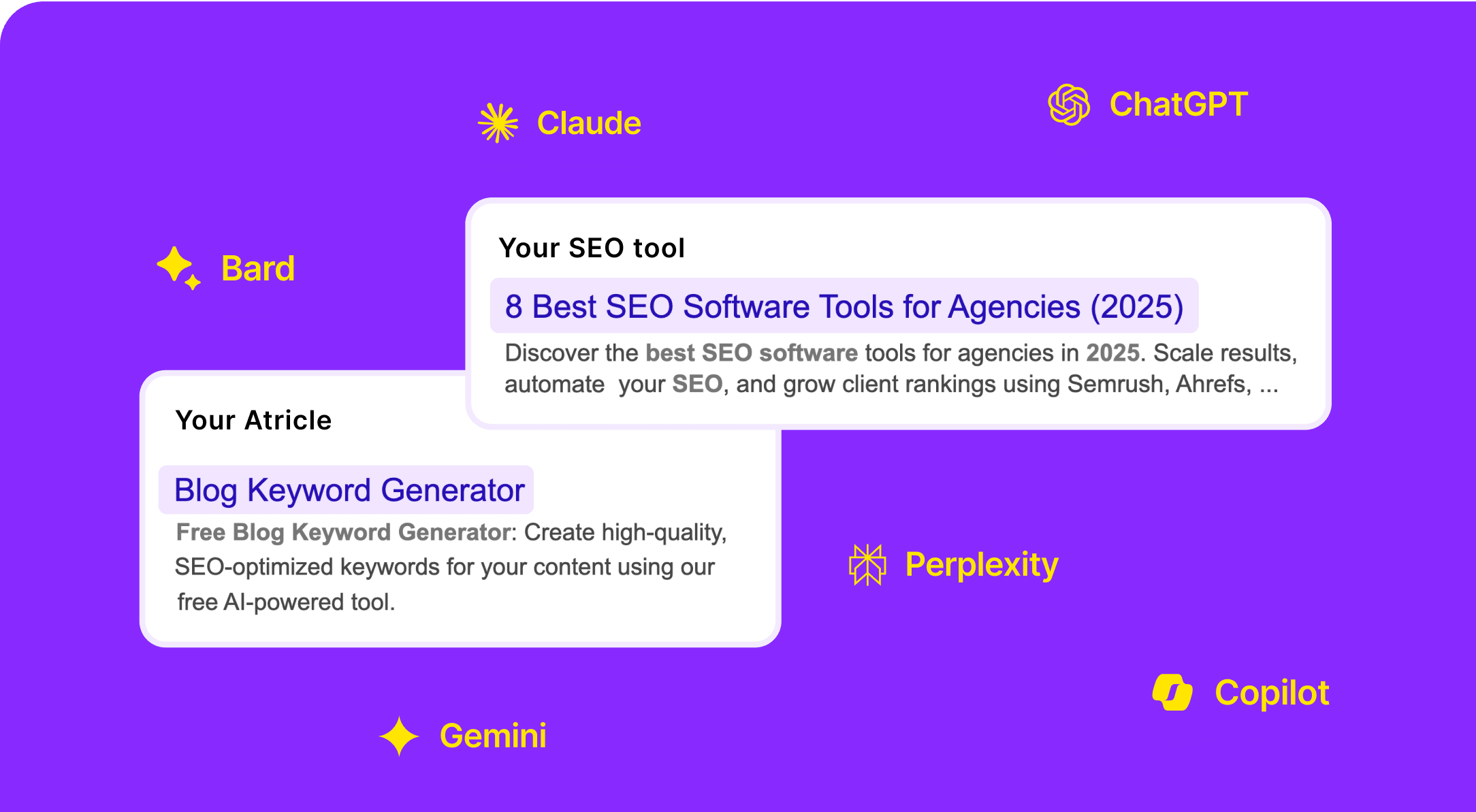
What we create for SEO?
We create two types of content - articles and SEO tools based on keywords that work for your business. One well-researched article or SEO tool can appear in thousands of AI responses. It's strategic promotion that works 24/7 worldwide.
We checked: 74% of the sources ChatGPT, Perplexity, Gemini and Claude cite are blog posts. See what AI cites for your own question, free
Why it's important to start now?
AI models form their preferences based on current search leaders. Those who build strong SEO today will get consistent AI recommendations for years ahead.
See how AIApply got picked up in AI answers with Outrank →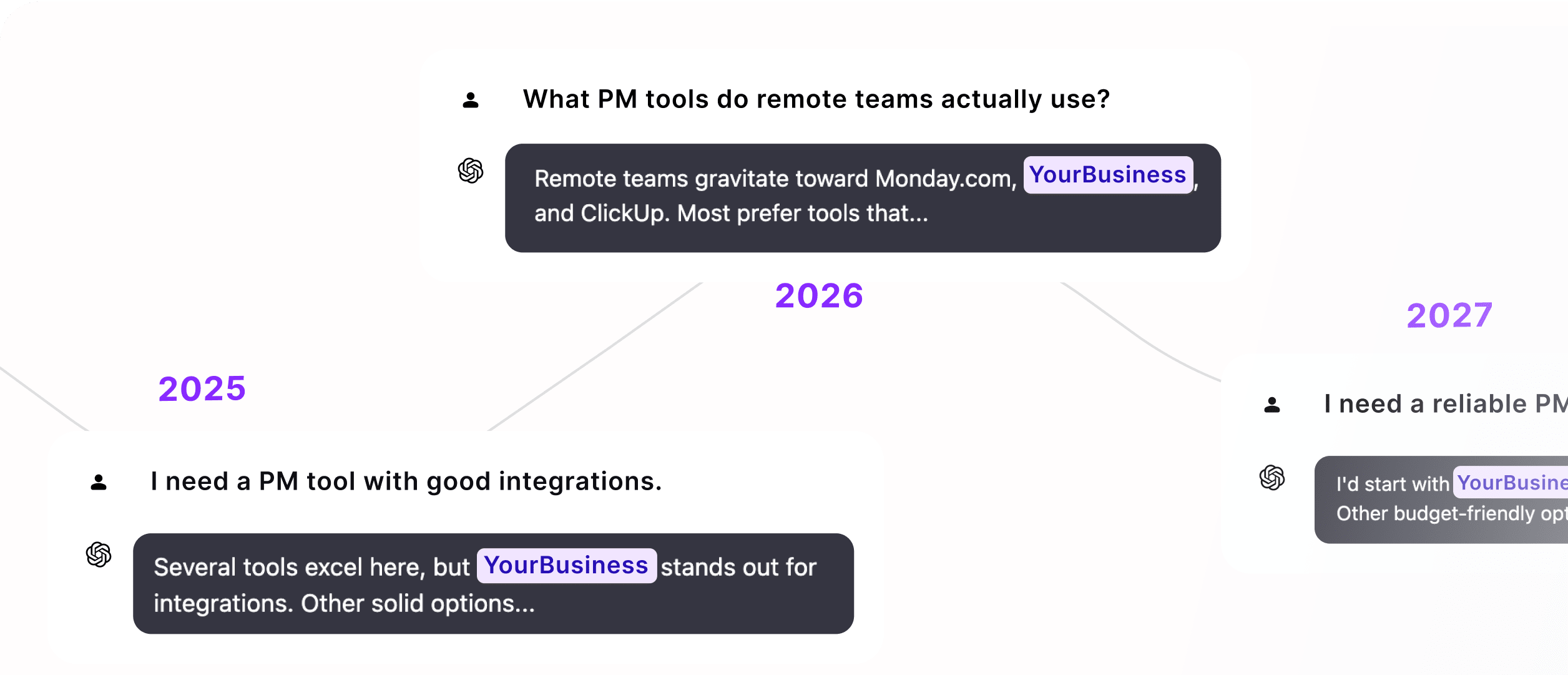
Loved by Busy Entrepreneurs!
pricing
Shopify SEO growth on Auto-Pilot
Everything you need to turn a Shopify catalog into product-aware SEO articles, backlinks, AI visibility, and organic revenue.
What's included:

30 Articles a month generated and published on auto-pilot
Unlimited Users in your Organization
Auto Keyword Research made for you hands-free
Connects to WordPress, Webflow, Shopify, Framer and more
High DR Backlinks built for you on auto-pilot with automated backlink building
AI Images generated in different styles
Relevant YouTube videos integrated into articles
Articles generated in 150+ languages
Unlimited AI Rewrites
Custom Features requests


%
More stores, less per store!
Volume discounts apply automatically
2–4 stores10% off
5–19 stores15% off
20–25 stores20% off
Running 25+ stores?
Talk to usFAQ
Shopify SEO questions, answered
Does Outrank connect directly to Shopify?
Yes. Outrank can publish articles to your Shopify blog and sync your product catalog for product-aware content.
Can this work with a large catalog?
Yes. Shopify sync is paginated and the article engine retrieves the most relevant products instead of pushing your full catalog into every prompt.
Will articles link to my product pages?
Yes. When catalog products are mentioned, Outrank links the first mention to the product URL from your Shopify catalog snapshot.
Can Outrank create product images for blog posts?
Yes. When catalog images are enabled, Outrank can create in-context editorial product visuals from your product references.
Why mention backlinks on a Shopify landing page?
Backlinks are one of the strongest ranking levers. Outrank combines product-led content with backlinks it builds for your store, so you can win more rankings and appear more often in AI answers.
Ready for Shopify growth?
Build the ecommerce SEO engine your competitors wish they had
Connect Shopify, sync your catalog, and let Outrank create product-led articles that can rank, earn backlinks, and send shoppers to your product pages.